---
title: "Project Settings"
description: "Settings of a LumiScan Annotation Web project: labels, region of interest, several annotators per image, agreement limits and box suggestions."
product: "LumiScan Annotation Web"
component: "lumiscan-annotation-web"
version: "2.6.0"
display_version: "2.6.0.1"
latest_version: false
language: "en"
url: "https://docs.hdvisionsystems.com/en/lumiscan-annotation-web/2.6.0/project-settings.html"
---
# Project Settings – LumiScan Annotation Web
Project admins open the settings of the current project with **Settings** in the top bar. They apply to everyone in the project and are stored in the project folder (`.lumiscan-annotation/settings.json`, the keys `labels` and `roiSettings` as in the desktop tool).
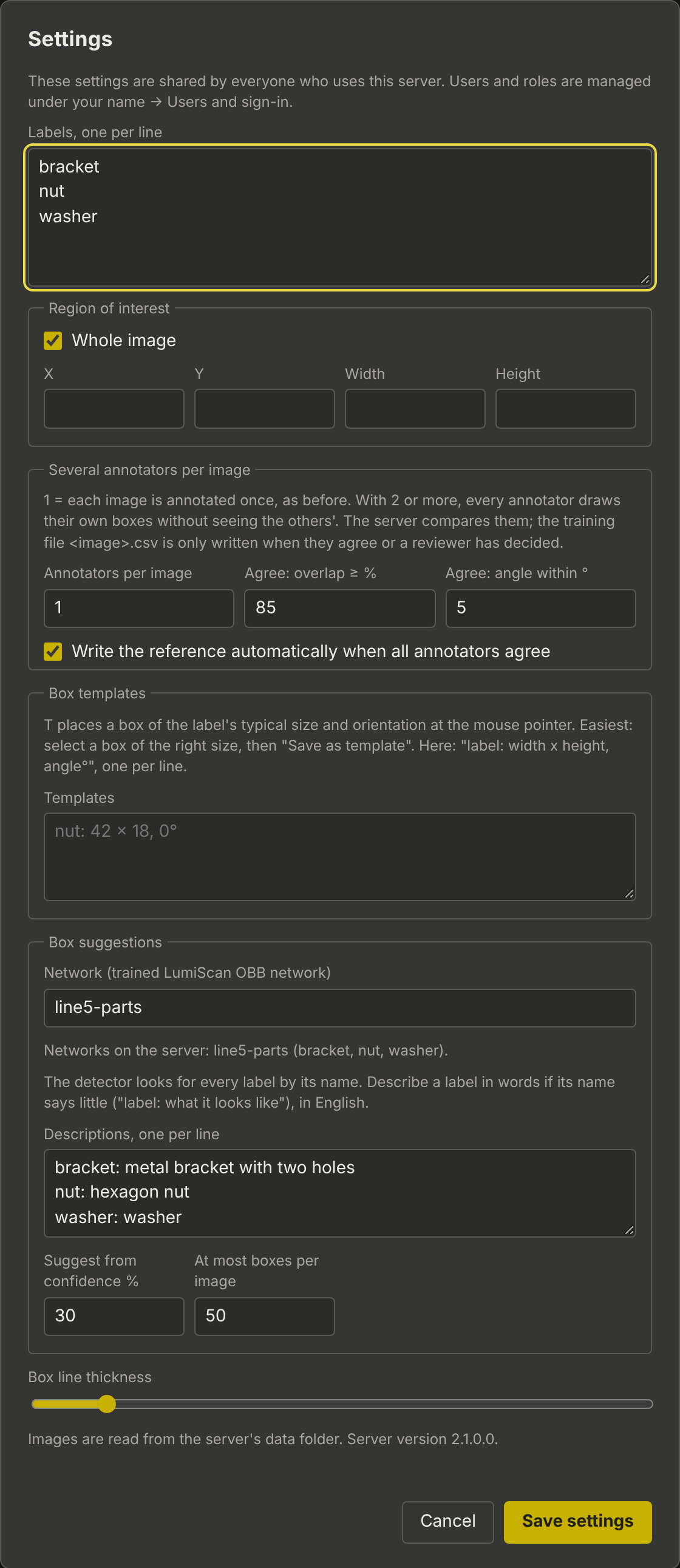
## Labels
One label per line. The order gives the keys 1 to 9 and the order in the list. Renaming a label here does not change boxes already saved with the old name. **Take labels from the annotations** adds the labels found in the project’s annotation files.
## Region of interest
**Whole image**, or a rectangle in image pixels (**X**, **Y**, **Width**, **Height**). The rectangle is outlined on every image; box suggestions outside it are left out.
## Several annotators per image
| | |
| --- | --- |
| Annotators per image | `1`: each image is annotated once. `2` or more: every annotator draws their own boxes without seeing the others', see [Several Annotators per Image](https://docs.hdvisionsystems.com/en/lumiscan-annotation-web/2.6.0/several-annotators-per-image.html). |
| Agree: overlap ≥ % | Minimum overlap of matching boxes (rotated intersection over union), default 85. |
| Agree: angle within ° | Maximum angle difference, default 5. |
| Write the reference automatically when all annotators agree | On (default): the server writes the mean boxes as the reference. Off: every image goes to review. |
## Box suggestions {#box-suggestions}
Shown when the server has a box suggestion service or networks of its own, or when a network could not be loaded.
| | |
| --- | --- |
| Network | The trained network of the project, chosen from the list of networks (it shows their classes). **The only network** with only one network: that one. |
| Descriptions | For the open-vocabulary detector: describe in English what a label looks like if its name says little, one per line, for example `part_a: hexagon nut`. |
| Suggest from confidence % | Suggestions below are left out, default 30. |
| At most boxes per image | Default 50. |
Below the fields, **Not loaded:** lists the network folders that could not be loaded, with the reason, for example a missing `network.onnx` or a network for the Hailo accelerator. A warning appears when none of the network’s classes is a label of the project: the suggestions then carry the class names of the network.
## Box templates {#box-templates}
One line per label: `label: width x height, angle°`, for example `nut: 42 x 18, 0°`. `T` places a box of that size and orientation, see [Box Templates](https://docs.hdvisionsystems.com/en/lumiscan-annotation-web/2.6.0/copying-boxes-and-templates.html#box-templates). Easier than typing: select a box of the right size and click **Save as template**. Delete a line to remove a template.
## Export for LumiScan Training
The network type, validation and test share and the labels without orientation chosen at the last [export](https://docs.hdvisionsystems.com/en/lumiscan-annotation-web/2.6.0/export-for-lumiscan-training.html) are kept with the project as the defaults for the next one.
## Box display {#box-display}
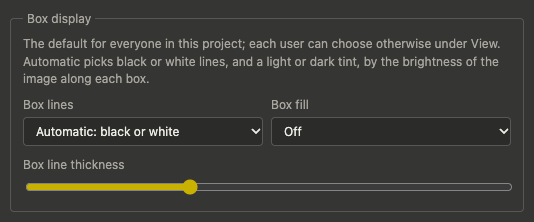
How the boxes are drawn on the image, as the default for everyone in the project. Each user can choose otherwise under **View** (see [Annotating Images](https://docs.hdvisionsystems.com/en/lumiscan-annotation-web/2.6.0/annotating-images.html)). Changes only the display.
| | |
| --- | --- |
| Box lines | **Automatic: black or white** (default): black lines where the image along a box is bright, white lines where it is dark, decided for each box from the image as it is shown (with brightness and contrast). **Light** and **Dark** fix the lines, for example **Dark** for a backlit line; **Colour** draws them in the chosen colour, which stands out on any shade of grey. |
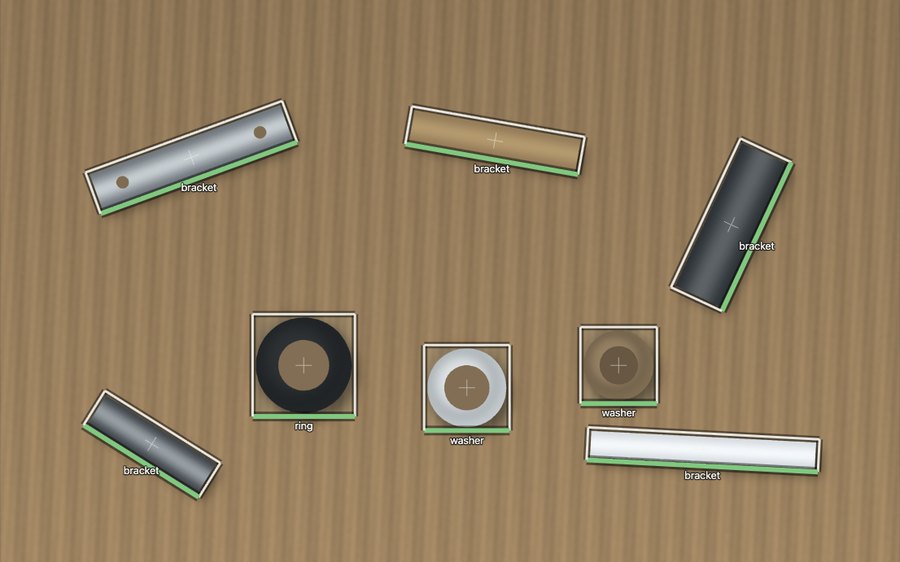
| Box fill | **Off** (default), **Automatic: light or dark tint** (a light tint of the colour on dark backgrounds, a dark tint on bright ones) or **Colour**. |
| Colour | Turquoise, light blue, magenta or orange, for coloured lines and the fill. Yellow, green and red stay reserved for the selected box, the bottom edge and the review markers. |
| Fill opacity | 5 to 50 %. Up to about 30 %, the edges of the parts stay easy to see under the fill. |
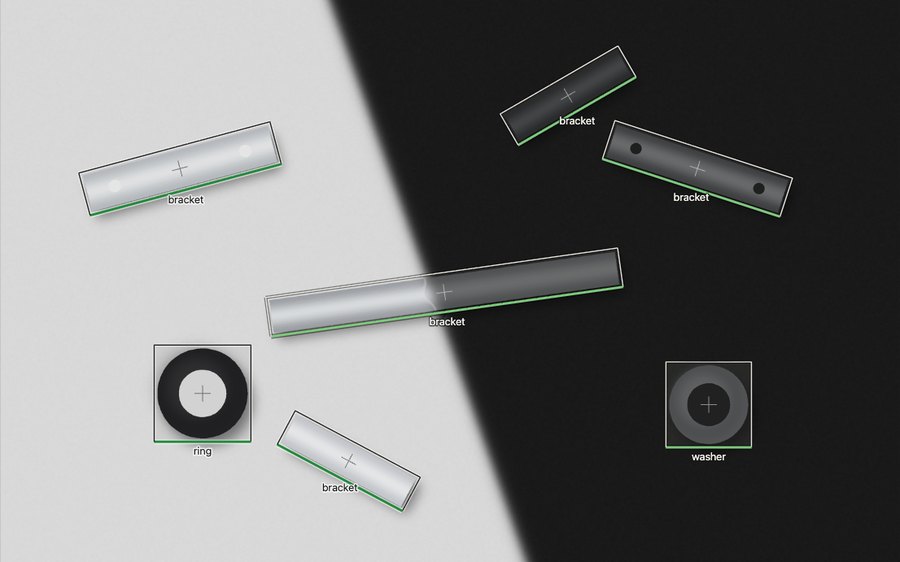
| Box line thickness | The thickness of the box lines, 0.5 to 5. |
Examples of every choice are in [Box lines and fill](https://docs.hdvisionsystems.com/en/lumiscan-annotation-web/2.6.0/annotating-images.html#box-lines-and-fill).
**Table 1. Fill opacity, with the automatic fill**
| | | | |
| --- | --- | --- | --- |
| 
Fill opacity 5 % | 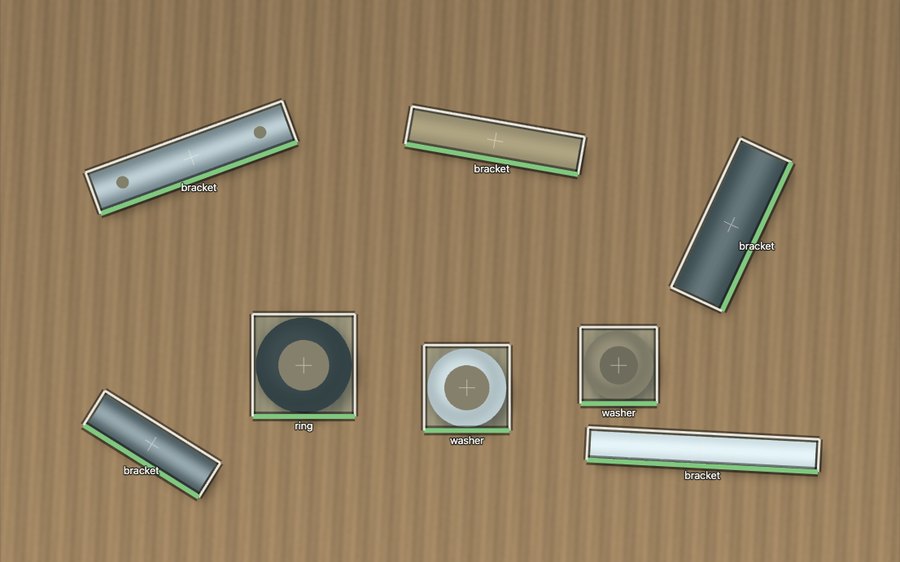
20 % | 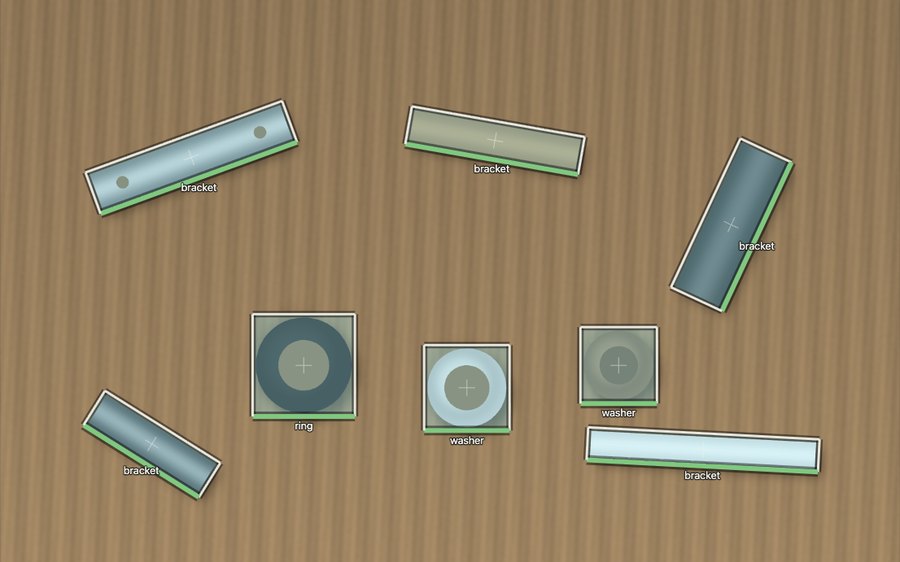
35 % | 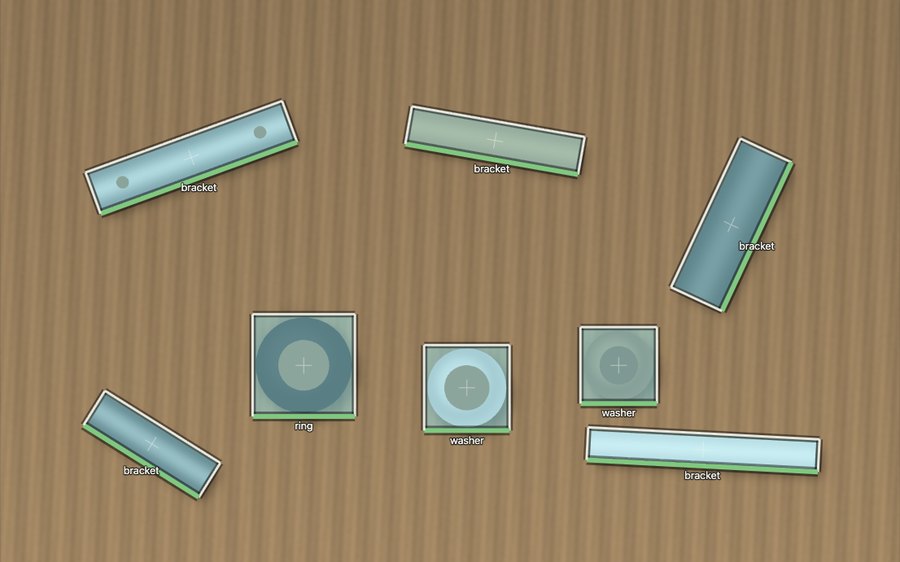
50 % |
**Table 2. Box line thickness**
| | | |
| --- | --- | --- |
| 
Thickness 1 | 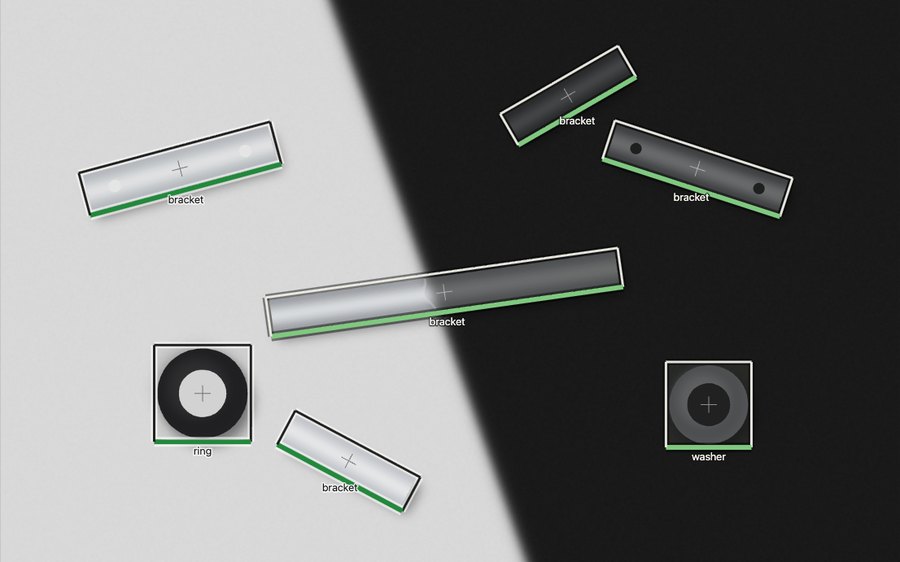
Thickness 2 | 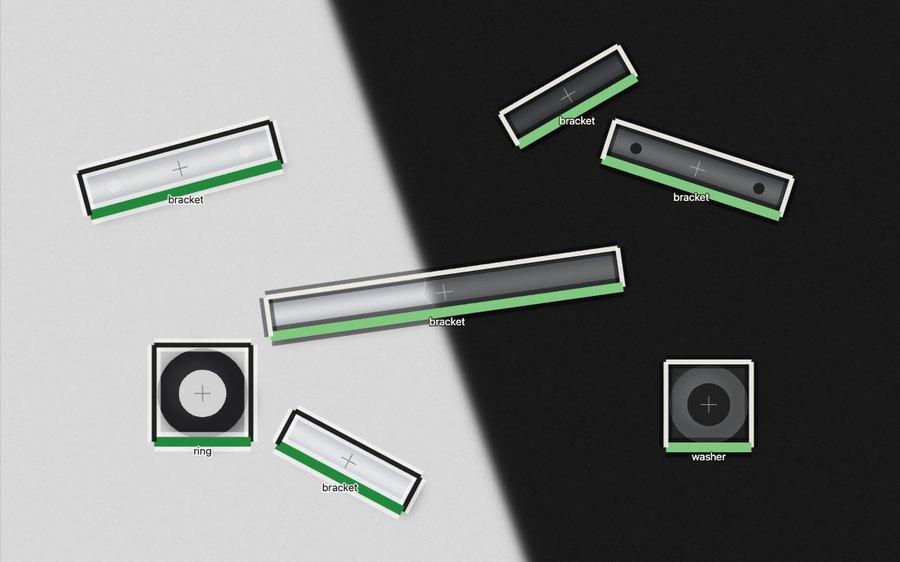
Thickness 4 |