---
title: "Requesting a Licence Update"
product: "LumiScan Licensing"
component: "lumiscan-licensing"
version: "1.0.4"
display_version: "1.0.4"
latest_version: true
language: "en"
url: "https://docs.hdvisionsystems.com/en/lumiscan-licensing/1.0.4/requesting-a-licence-update.html"
---
# Requesting a Licence Update – LumiScan Licensing
You can add or extend licences on your LumiScan Key without sending the key in. The procedure has three steps:
**Requesting a licence update: request, update, import**
```mermaid
%% Requesting a licence update. Rendered by Mermaid in the browser; edit and preview at https://mermaid.live
sequenceDiagram
participant P as Your PC + LumiScan Key
participant H as HD Vision Systems
Note over P: 1 · Create request
3-1234567.WibuCmRaC
P->>H: e-mail to licenses@hdvisionsystems.com
Note over H: 2 · Create update
matching this key only
H->>P: e-mail back to you
Note over P: 3 · Import update
3-1234567.WibuCmRaU
```
1. You create a licence request file (`.WibuCmRaC`) and send it to HD Vision Systems.
2. HD Vision Systems sends you a matching licence update file (`.WibuCmRaU`).
3. You [import the update file](https://docs.hdvisionsystems.com/en/lumiscan-licensing/1.0.4/importing-a-licence-update.html) onto the LumiScan Key.
The request file describes only the current state of your LumiScan Key. It contains no personal data and does not change your licences.
> [!IMPORTANT]
> An update file matches only the LumiScan Key and the state from which the request was created. Each update file can be imported only once. Until you have imported the update from HD Vision Systems, do not import any other licence updates onto this LumiScan Key.
## Prerequisites
- CodeMeter Runtime is installed (see [Installing CodeMeter Runtime](https://docs.hdvisionsystems.com/en/lumiscan-licensing/1.0.4/installing-codemeter.html)).
- The LumiScan Key is connected to the PC.
## Creating the request in CodeMeter Control Center
1. Open **CodeMeter Control Center**, for example through the Windows search.
2. On the **License** tab, select your LumiScan Key on the left and click **License Update**.
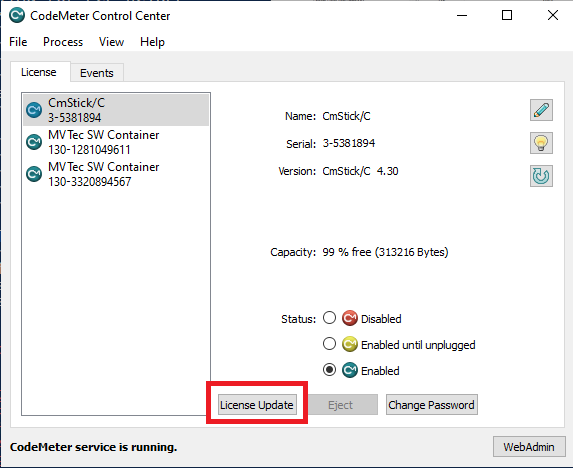
The CmFAS Assistant opens.
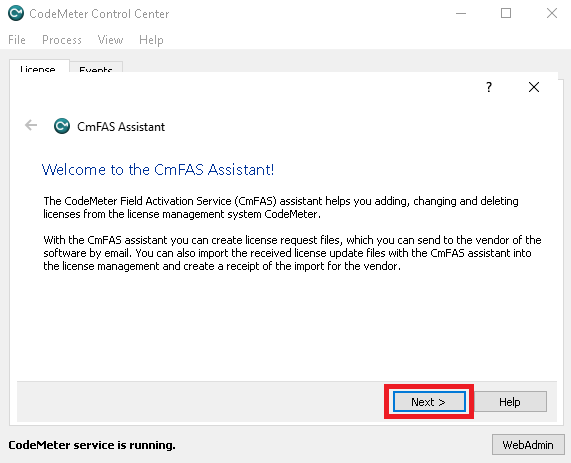
3. On the welcome page, click **Next**.
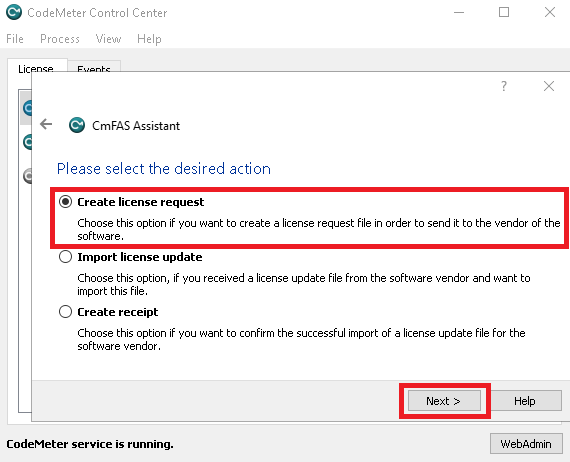
4. Select **Create license request** and click **Next**.
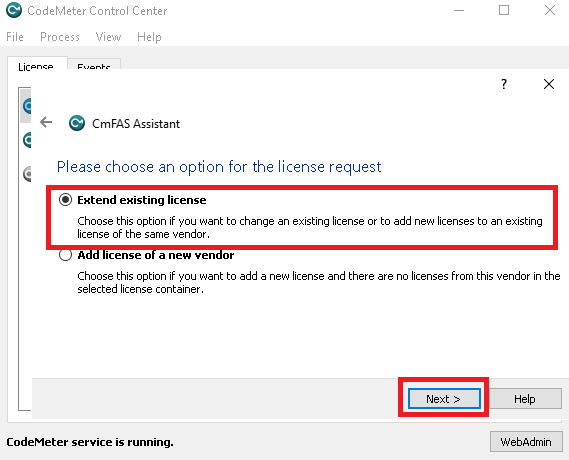
5. Select **Extend existing license** and click **Next**.
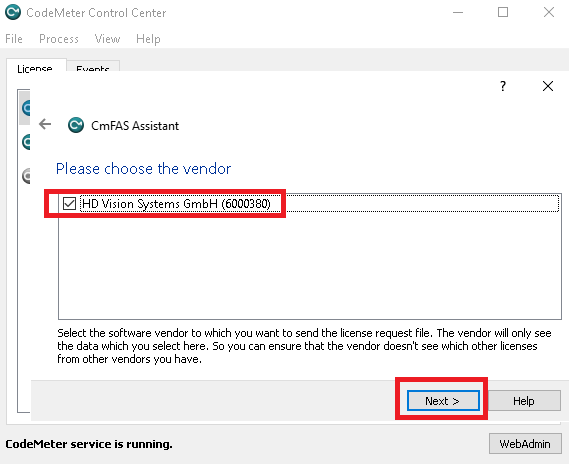
6. Select **HD Vision Systems GmbH (6000380)** and click **Next**.
> [!NOTE]
> If **HD Vision Systems GmbH (6000380)** is not listed, you did not select the LumiScan Key in step 2. Close the assistant and start again at step 2.
7. Check the location and the file name, and click **Commit**.
The suggested file name contains the serial number of the LumiScan Key, for example `3-1234567.WibuCmRaC`. Keep this name so that the file can be matched to your key.
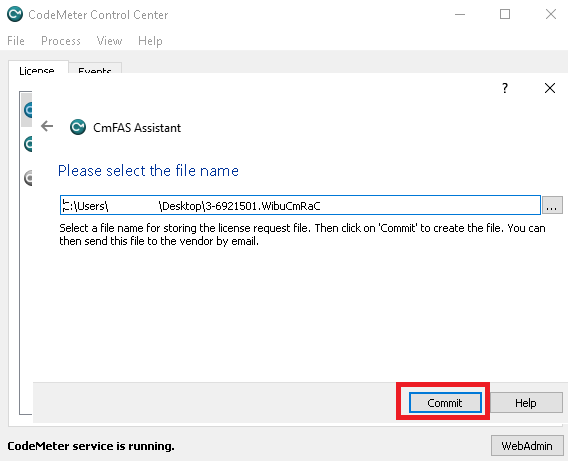
The request file is created at the location you specified.

8. Send the `.WibuCmRaC` file by e-mail to [licenses@hdvisionsystems.com](mailto:licenses@hdvisionsystems.com). In the e-mail, state your order or quotation number and the LumiScan products you want.
## Creating the request on the command line {#command-line}
On a PC without a graphical interface, for example Ubuntu 24.04 without a desktop, use `cmu`. On Windows, it is called `cmu32` and is available in the **CodeMeter Command Prompt**.
1. Show the serial number of the LumiScan Key:
```bash
cmu --list
```
2. Create the request file. Replace `3-1234567` with the serial number of your LumiScan Key:
```bash
cmu --context 6000380 --serial 3-1234567 --file 3-1234567.WibuCmRaC
```
3. Send the `.WibuCmRaC` file by e-mail to [licenses@hdvisionsystems.com](mailto:licenses@hdvisionsystems.com), as described above.