---
title: "User Interface"
product: "LumiScan Training"
component: "lumiscan-training"
version: "2.3.0"
display_version: "2.3.0.2"
latest_version: true
language: "en"
url: "https://docs.hdvisionsystems.com/en/lumiscan-training/2.3.0/user-interface.html"
---
# User Interface – LumiScan Training
After starting the program, the standard user interface opens (Fig. 10).
The elements of the user interface are described in Table 1.
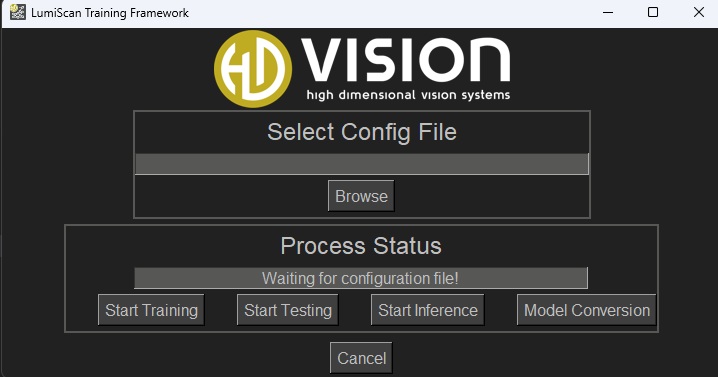
*Figure 1. Fig. 10: LumiScan Training Framework User Interface*
**Table 1. Table 1: LumiScan Training Framework User Interface Description**
| No. | Description |
| --- | --- |
| 1 | **Select Config File/Browse** is used to select the configuration file. |
| 2 | **Process Status** displays the current status of the process.
Possible messages include:
- **Waiting for configuration file!** The program is waiting for a configuration file to be selected.
- **Testing Network!** Appears after clicking **Start Testing** and indicates that an existing network is being tested with a test data set.
- **Waiting for deployment!** Appears after training while the network is being prepared for conversion and export to an ONNX file.
- **Finished cleanup** indicates that the process has finished.
- **Time Remaining** displays the estimated remaining process time.
- **Latest test scores** displays a metric for evaluating trained networks. The value should be used primarily to compare networks tested with the same data set rather than as an absolute measure of performance. |
| 3 | **Start Training** starts the training process using the selected configuration. |
| 4 | **Start Testing** tests the network using the test data set specified in the configuration. The results are stored in the Export folder. |
| 5 | **Start Inference** opens a dialog for selecting a folder containing images. The trained network is then applied to these images, and the prediction results are saved in the `predictions` folder within the export directory. |
| 6 | **Model Conversion** opens a dialog for converting a trained ONNX model to a Hailo model. See [Model Conversion: ONNX to Hailo](https://docs.hdvisionsystems.com/en/lumiscan-training/2.3.0/model-conversion.html).
This function requires the Hailo PlugIn. |
| 7 | **Cancel** interrupts an ongoing training, testing, or inference process. |
For successful training, all relevant parameters must be configured in the JSON settings beforehand. An example configuration is provided in the next section.