LumiScan Licensing
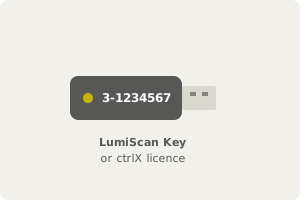
Find your licensing path. LumiScan Key, ctrlX WORKS or ctrlX OS License Manager. |
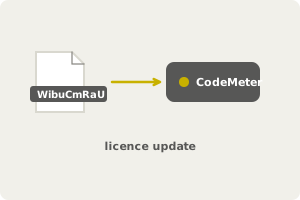
Import the licence update. Into the LumiScan Key with CodeMeter Runtime. |
Your products are licensed. Engineering apps by subscription, runtimes once. |
LumiScan Licensing explains how to license every LumiScan product in one place: installing, requesting, renewing and moving licences. Which path applies depends on where you bought the software and where it runs: the LumiScan Key for software bought from HD Vision Systems, ctrlX WORKS on Windows, or the ctrlX OS License Manager. Engineering apps are an annual subscription; runtimes and vision apps are a one-time purchase.
This manual explains how to license LumiScan software. It applies to every LumiScan product: the engineering apps (such as LumiScan Annotation Framework, LumiScan Training Framework and LumiScan VGR Engineering) and the runtimes and vision apps (such as LumiScan VGR, LumiScan CamDriver and the code readers).
The product manuals only state which licence a product needs. How to install, request, renew and move a licence is described here, once, for all products.
Start here
-
Find your case in Which Licensing Path Applies. It depends on where you bought the software and where it runs.
-
If your case uses the LumiScan Key, read The LumiScan Key and install CodeMeter Runtime.
-
Follow the page for your licensing path.
Quick answers to common questions: Licensing FAQ.
Contact
Send licence requests and licensing questions to licenses@hdvisionsystems.com. Please always state your company name, the order or invoice number, and the serial number of your LumiScan Key.
In this manual
Which Licensing Path Applies – Which licensing path applies to LumiScan software - where you bought it and where it runs: HD Vision Systems, ctrlX Store on Windows or on ctrlX OS.
The LumiScan Key – The LumiScan Key - the USB licence key as a CodeMeter container, how to recognise it in CodeMeter Control Center and its role in each licensing path.
Installing CodeMeter Runtime – Installing CodeMeter Runtime for LumiScan licensing - the minimum version, installation on Windows 11 and connecting the LumiScan Key.
Licence Reference – Licence reference for the LumiScan apps - ctrlX licence part numbers, licence version V2 and counting rules for Standard and Advanced reader licences.
FAQ – Frequently asked questions about licensing LumiScan software - LumiScan Key, CodeMeter, licence updates, renewal and ctrlX licences.
Troubleshooting – Troubleshooting LumiScan licensing - general checks, a LumiScan Key that is not detected, licence updates, apps that do not start, what to send to support.