LumiScan File Transfer
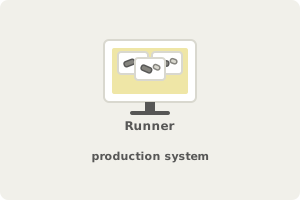
The Runner collects images. On the production system, generated and annotated. |
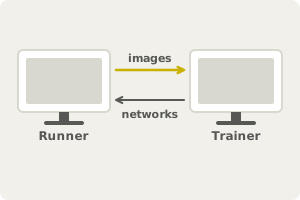
Images go to the Trainer. Newly trained networks come back. |
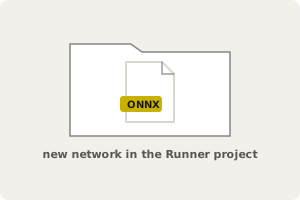
The Runner uses the new network. It lands in the Runner project, ready to use. |
LumiScan File Transfer closes the retraining loop between the production system and the training system. The Runner sends generated and annotated images to the Trainer, which stores them for training and sends newly trained networks back to the Runner project. The Runner deletes images only after a successful transfer. It runs on Windows 11.
In this manual
Description – LumiScan File Transfer overview - the Runner sends annotated images to the Trainer, which stores them for training and sends newly trained networks back.
Before Installation – Before installing LumiScan File Transfer - install CodeMeter Runtime 9.00 or later and connect the LumiScan Key that the software is licensed with.
Installing LumiScan File Transfer on Windows – Install LumiScan File Transfer on Windows - run the installer, accept the licence terms, choose the installation location and Start Menu folder.
Before Starting the Program – Before starting LumiScan File Transfer - create the Runner and Trainer folders with the networks and trainingdata subfolders and date-named folders.
Switching Roles – Switch roles in LumiScan File Transfer - open settings.json, set profile to RUNNER or TRAINER in capital letters and save the change with Ctrl+S.
Starting the Program for the First Time – Starting LumiScan File Transfer for the first time - where the settings file is created, the start in the Runner role and the first Runner window.
LumiScan File Transfer Runner – The LumiScan File Transfer Runner - user interface, settings such as directory and port, sending annotated images to the Trainer and receiving networks.
LumiScan File Transfer Trainer – The LumiScan File Transfer Trainer - receive and store images from the Runner, set directories and port, and send trained networks back to the Runner.
FAQ – FAQ for LumiScan File Transfer - Runner and Trainer roles, installation, licensing, folder structure, network settings and file transfer.
Troubleshooting – Problems with LumiScan File Transfer - symptoms, causes, checks and solutions for the Runner and Trainer roles, and the information that support needs.