Troubleshooting
This page starts with the general checks that apply to every problem. The problems follow, grouped into running inference and reading results in ctrlX PLC Engineering. Do the general checks first, then find your symptom.
General checks
-
Read the status of the module:
hdvisionsystems/lumiscan-ai-object-matching/<network name>/control/status/codeandhdvisionsystems/lumiscan-ai-object-matching/<network name>/control/status/text. The meaning of each code is listed in Status Code Values. -
Read the status of the application:
hdvisionsystems/lumiscan-ai-object-matching/system/restart-requiredandhdvisionsystems/lumiscan-ai-object-matching/system/status-text. Ifrestart-requiredistrue, see Problem: Every module reports status -5 (restartRequired). -
If a module did not start, read
hdvisionsystems/lumiscan-ai-object-matching/system/settings. A module file that could not be read appears there as{"$file": ..., "$error": ...};"$error"says why. See What the node shows. -
Read the log. On ctrlX OS, the application writes its messages to the ctrlX OS system log. Read them in the Logbook of the ctrlX web interface, or with
journalctl(see ctrlX Data Layer on ctrlX OS). -
Check the licence. On ctrlX OS, the application shuts down shortly after starting if the licence is missing; the reason is in the system log. A missing licence is reported as status
-4(MissingLicense). See Requirements. -
After you change a configuration file, restart the application. A change to the settings on the Data Layer also takes effect only with the next start.
-
Problems that all LumiScan apps share - an app or module missing from the tree, a node that is "not found", a method call that is refused - are described in Troubleshooting of the LumiScan Keryx manual.
Running inference
Problem: inference/ready stays False, or the inference ends with status 100001
-
<network name>/control/inference/readystaysFalse, so you cannot request an inference. -
inference/readyisTrue, but the request is never acknowledged:readydoes not fall after you setrequesttoTrue. -
control/status/codeis100001(ImageQueueEmpty). Earlier versions reported status10001(noNewExternalImage); that code is no longer used.
-
Status
100001: the image could not be read. The image node (input/image, or the external image address) has no data, or could not be read. This is not an error. -
The application is still loading the configuration and setting up the network.
-
The image stream of the module runs.
-
No licence is installed.
-
The settings were changed on the Data Layer, and the application waits for a restart (status
-5). -
readyisTrue, but the request is not acknowledged: the last inference failed, and the module is in error. It ignores every request butreset. -
More than one process writes
control/inference/request.
-
Read
control/status/codeandcontrol/status/textof the module and look the code up in Status Code Values:-
1(settingUp): the module is still setting up. -
100001(ImageQueueEmpty): the image could not be read. -
100002(StreamActive): the image stream runs, see Problem: An inference request is answered with status 100002 (StreamActive). -
-4(MissingLicense): the licence is missing. -
-5(restartRequired): a restart is required, see Problem: Every module reports status -5 (restartRequired).
-
-
For status
100001, check the image node. With an external image address (externalImagePathin the module configuration file), check that<address>/data,<address>/height,<address>/widthand<address>/pixel-type(Mono8orRGB8) have values. Without one, checkhdvisionsystems/lumiscan-ai-object-matching/<network name>/input/image. -
Read
control/subscribe/output/stream/active. Expected for inference on request:false. -
If
readyisTruebut does not fall after your request, read the log for a failed inference. -
Check that only one process accesses
control/inference/request.
-
If the image could not be read (status
100001): provide an image from the image source, for example capture an image with the LumiScan Cam Driver, and run the inference again. For an image oninput/image, write the raw image and set its width, height and pixel format, see Initializing the Inference. The application does not check whether the image is new: an image that has not changed since the last inference is inferred again. -
If the module is still setting up: wait until
inference/readyisTrue. -
If the image stream runs: stop the stream first, see Problem: An inference request is answered with status 100002 (StreamActive).
-
If no licence is installed: install the licence, see Requirements.
-
If a restart is required (status
-5): restart the application, see Problem: Every module reports status -5 (restartRequired). -
If the module is in error after a failed inference:
-
Request
reset(with the handshake oncontrol/reset/, or withcontrol/reset/execute). -
Check the application log for the cause.
-
Request the inference again.
-
-
If more than one process writes
request: make sure that only one process accessescontrol/inference/requestat a time. Otherwise the result of the handshake is undefined.
Send the information listed under Information for support to support, together with the values of control/status/code, control/status/text, control/inference/ready and output/package-identifier, and whether you use the handshake or control/inference/execute.
Problem: status/code is 3 after every inference
After every inference requested through the handshake, control/status/code is 3 (waitingForClient), whether the inference succeeded or not.
-
This is how the handshake works: an inference requested through the handshake ends at status
3, whatever its outcome.status/codedoes not show whether it succeeded.
-
Before you request the inference, note the value of
<network name>/output/package-identifier. -
When
inference/readyisTrueagain, readoutput/package-identifieragain. Expected: it has grown by one. It grows by one with every successful inference, and only then (see Outcome of an Inference). -
If it did not grow, the inference failed. Request the next inference: if
inference/readydoes not fall, the module is in error after a failed inference.
-
If
output/package-identifierhas grown by one: the inference succeeded. Read the result at<network name>/output/result. -
If it did not grow because the image could not be read (there was no image, or it was empty): provide an image and request the inference again.
-
If it did not grow because the inference itself failed: the module is in error and ignores every request but
reset. Requestreset, and check the application log for the cause. -
If you want to read the outcome on
status/codedirectly: start the inference withcontrol/inference/executeinstead (from v2.1.0).status/codethen keeps the outcome:0,100001or-1. See Execute a Method.
Send the information listed under Information for support to support, together with the value of output/package-identifier before and after the inference.
Problem: A write to execute is refused
From v2.1.0. A write to <network name>/control/<function>/execute is answered with one of the following results. The function does not run; a refused write is never queued.
| ctrlX Data Layer | LumiScan Keryx |
|---|---|
|
|
|
|
|
|
-
DL_TOO_MANY_OPERATIONS/TooManyOperations: another function of the module runs, through the handshake or anotherexecute. -
DL_INVALID_OPERATION_MODE/InvalidOperationMode: thereadysignal of the function isFalse, so the module cannot run it - for exampleinferencewhile the image stream runs. -
DL_RESOURCE_UNAVAILABLE/ResourceUnavailable: the application is shutting down; or the settings were changed on the Data Layer and a restart is required (status-5); or the module is in error after a failed inference.reset/executeis never refused for the error.
-
Note the exact result of the write, and look it up in Execute a Method (see also A method call is refused in the LumiScan Keryx manual).
-
For
DL_INVALID_OPERATION_MODE/InvalidOperationMode: read thereadynode of the function (for an inference,control/inference/ready) andcontrol/status/code. Readcontrol/subscribe/output/stream/active:truemeans the image stream runs. -
For
DL_RESOURCE_UNAVAILABLE/ResourceUnavailable: readhdvisionsystems/lumiscan-ai-object-matching/system/restart-required.truemeans a restart is required. -
Read the log. The apps log the first refusal of a method, then at most one line every ten seconds for the same method and result.
-
If another function runs (
DL_TOO_MANY_OPERATIONS/TooManyOperations): retry. The write succeeds once that operation finishes. -
If the
readysignal isFalse(DL_INVALID_OPERATION_MODE/InvalidOperationMode): bring the module into the required state first; retrying alone keeps failing. Do not retry in a loop. If the image stream runs, stop it first, see Problem: An inference request is answered with status 100002 (StreamActive). -
If a restart is required: restart the application, see Problem: Every module reports status -5 (restartRequired).
-
If the module is in error after a failed inference: run
reset(control/reset/execute), then retry. -
If the application is shutting down: the function cannot run. When the application has started again, its nodes can be read again; then retry.
Send the information listed under Information for support to support, together with the exact result of the write, the function you called and the value of control/status/code.
Problem: An inference request is answered with status 100002 (StreamActive)
From v2.2.0 (image stream, experimental).
-
After a request on
control/inference/request,control/status/codeis100002(StreamActive), and the request is not acknowledged. -
control/inference/readyisFalse. -
control/inference/executeanswersDL_INVALID_OPERATION_MODE(LumiScan Keryx:InvalidOperationMode).
-
The module infers on its image stream. The stream and inference on request use the same network, so they never run at the same time (see Inference on request while the stream runs). This is not an error, and no reset is needed.
-
The module started in stream mode:
stream.enableistruein the module configuration file.control/subscribe/executesavesenable, so after a restart the module starts its stream again at once.
-
Read
control/subscribe/output/stream/active.truemeans the module infers on its image stream. -
Read
setting/stream/enableandsetting/stream/address: they show what the module applies now, as saved in thestreamsection of the module configuration file.
-
If you need inference on request:
-
Stop the stream: write
falsetocontrol/subscribe/input/enableandtruetocontrol/subscribe/execute. This is saved: the module starts again as it was left. -
Check that
control/subscribe/output/stream/activeisfalseandcontrol/inference/readyisTrue. -
Request the inference.
-
-
If you need the results of the stream: subscribe to
control/subscribe/output/stream/resultand read the results there.
Send the information listed under Information for support to support, together with the values of control/subscribe/output/stream/active and setting/stream/enable, and the stream section of the module configuration file.
Problem: Every module reports status -5 (restartRequired)
-
Every module reports status
-5(restartRequired). It answers no request, and itsreadysignals arefalse. -
hdvisionsystems/lumiscan-ai-object-matching/system/restart-requiredistrue. -
Every
executemethod of a module answersDL_RESOURCE_UNAVAILABLE/ResourceUnavailable. That includesreset. -
A running image stream stops.
-
The log has the message at error level.
-
The settings were changed on the Data Layer (
hdvisionsystems/lumiscan-ai-object-matching/system/settings). The change is saved, but takes effect only with the next start (see Restart required). -
activate-moduleordeactivate-modulewas called. The change applies from the next start. -
A file could not be saved: the write answered
DL_CREATION_FAILED/CreationFailed. Files changed before it stay changed, so the application requires a restart all the same.
-
Read
hdvisionsystems/lumiscan-ai-object-matching/system/restart-required. Expected in this state:true. -
Read
hdvisionsystems/lumiscan-ai-object-matching/system/status-text. It says which files changed. -
Read
hdvisionsystems/lumiscan-ai-object-matching/system/settings. It shows the files as saved, which is what the next start loads. -
If a write to
settingsansweredDL_CREATION_FAILED/CreationFailed, read the log for the file that could not be saved.
A reset does not end this state; only a restart does.
-
If the settings were changed on the Data Layer, or a module was activated or deactivated:
-
Call
hdvisionsystems/lumiscan-ai-object-matching/system/control/restart/execute. It answersDL_OK/Okas soon as the restart has begun. On ctrlX OS, ctrlX OS starts the application again after about five seconds. -
Wait until
hdvisionsystems/lumiscan-ai-object-matching/system/restart-requiredcan be read again. Expected:false.
-
-
If a file could not be saved (
DL_CREATION_FAILED/CreationFailed): correct the files, then restart the application as described above.
Send the information listed under Information for support to support, together with the content of system/status-text and system/settings.
Reading results in ctrlX PLC Engineering
Problem: The schemas folder does not exist
On ctrlX OS, in Manage app data, the folder lumiscan-ai-object-matching/schemas does not exist, so you cannot download object_detection.fbs from lumiscan-ai-object-matching/schemas/flatbuffers.
-
The application has not started successfully. The
schemasfolder is created during start-up, after the licence check. -
The licence is missing. The application then shuts down shortly after starting.
-
Read the ctrlX OS system log in the Logbook of the ctrlX web interface, or with
journalctl. If the licence is missing, the reason is written there. -
Check that the ctrlX licence
SWL-W-XCx-OBJxMATCHxHDVSx-V2NNis installed.
-
If the licence is missing: install a valid licence, see Requirements and Troubleshooting of the LumiScan Licensing manual. Then check in Manage app data that the folder
lumiscan-ai-object-matching/schemas/flatbuffersexists. -
If the application did not start for another reason: the reason is in the system log. Contact support.
Do not edit files in schemas: the application deletes and recreates the folder on every start.
Send the information listed under Information for support to support, together with the messages of the application from the ctrlX OS system log.
Problem: Import from FlatBuffers file… is not in the context menu
In ctrlX PLC Engineering, you right-click Application in the device tree. The context menu does not contain Import from FlatBuffers file….
-
The ctrlX Data Layer library
CXA_Datalayeris missing.
-
Check that you use ctrlX PLC Engineering 2.6 or later.
-
Check in the Library Manager of the PLC project that
CXA_DatalayerandCXA_Flatbuffersare referenced.
-
If the ctrlX Data Layer library is missing:
-
In the PLC Engineering menu bar, select Tools > Library Repository….
-
Search for
CXA_Datalayer, select the library and click Open. -
Repeat the import: right-click Application, select Import from FlatBuffers file… and select
object_detection.fbs.The screenshots are in Install the ctrlX Data Layer Library.
-
-
If another library is missing after the import: add it in the Library Manager.
Send the information listed under Information for support to support, together with the version of ctrlX PLC Engineering and the libraries listed in the Library Manager.
Problem: The message "Identifier 'VectorT' not defined" appears after the import
After the import of object_detection.fbs, the editor of the function block hdv_object_detection2d_InstanceTVec shows the message Identifier 'VectorT' not defined (observed with ctrlX PLC Engineering 3.6).
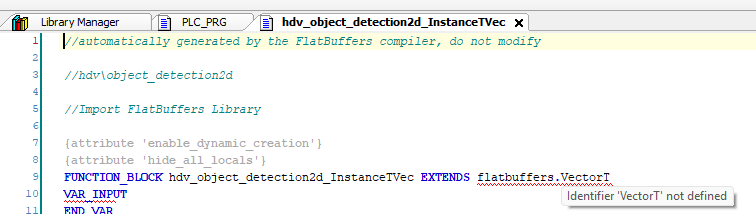
-
The function block
hdv_object_detection2d_InstanceTVecextendsflatbuffers.VectorT. The version of theCXA_Flatbufferslibrary that is available for ctrlX PLC Engineering 3.6 (0.1.3.3) does not contain this function block.
-
Open the editor of
hdv_object_detection2d_InstanceTVec. Expected: the message is shown on the lineFUNCTION_BLOCK hdv_object_detection2d_InstanceTVec EXTENDS flatbuffers.VectorT. -
Check which version of
CXA_Flatbuffersthe PLC project references in the Library Manager.
The message does not affect reading results.
-
If the message is shown:
-
Do not use
hdv_object_detection2d_InstanceTVecin your program. It is not needed to read results. Access individual instances withgetInstancesofhdv_object_detection2d_Result, see Example: Reading Position and Score of an Instance. -
If the message is disturbing, delete the function block
hdv_object_detection2d_InstanceTVecfrom the application. No other generated function block refers to it.
-
Send the information listed under Information for support to support, together with the version of ctrlX PLC Engineering, the version of CXA_Flatbuffers and the exact message.
Information for support
If a problem persists, send the following information to support:
-
The version of LumiScan AI Object Matching.
-
The platform: ctrlX OS on a ctrlX CORE or ctrlX IPC, with the ctrlX OS version (with TPU acceleration, also the version of App Hardware Support); or a PC with Windows 11 or Ubuntu 24.04 and LumiScan Keryx.
-
For problems in ctrlX PLC Engineering: the version of ctrlX PLC Engineering and of the libraries
CXA_DatalayerandCXA_Flatbuffers. -
The log of the application. On ctrlX OS, the messages of the application from the ctrlX OS system log (Logbook of the ctrlX web interface, or
journalctl). On a PC, the log of the application. -
The date and time of the error.
-
The Data Layer status: which Data Layer you use (ctrlX Data Layer or LumiScan Keryx; on a PC, the Data Layer address), the values of
control/status/codeandcontrol/status/textof the module,system/restart-requiredandsystem/status-text, and, for a refused method call, the exact result of the write. -
The configuration files from the folder
lumiscan-ai-object-matching: the application configuration fileai-object-matching.json, the module configuration file and the model description file (.json) inmodels. Alternatively, send the content ofhdvisionsystems/lumiscan-ai-object-matching/system/settings: every value namedpasswordshows there as"***".
Contact HD Vision Systems customer success at customer.success@hdvisionsystems.com or +49 6221 6721905. For licences, contact licenses@hdvisionsystems.com.