Languages and Translations
LumiScan Annotation Web is available in these languages:
| Language | Code |
|---|---|
English |
|
Deutsch (German) |
|
Español (Spanish) |
|
Français (French) |
|
中文(简体) (Chinese, simplified) |
|
The texts are written in English; the other languages are translations of them.
Choosing the language
At the first visit the app uses the language of the browser. If there is none for it, the app uses English.
To choose another language:
-
on the login page: the language list at the bottom of the login card,
-
when signed in: your name → Language.
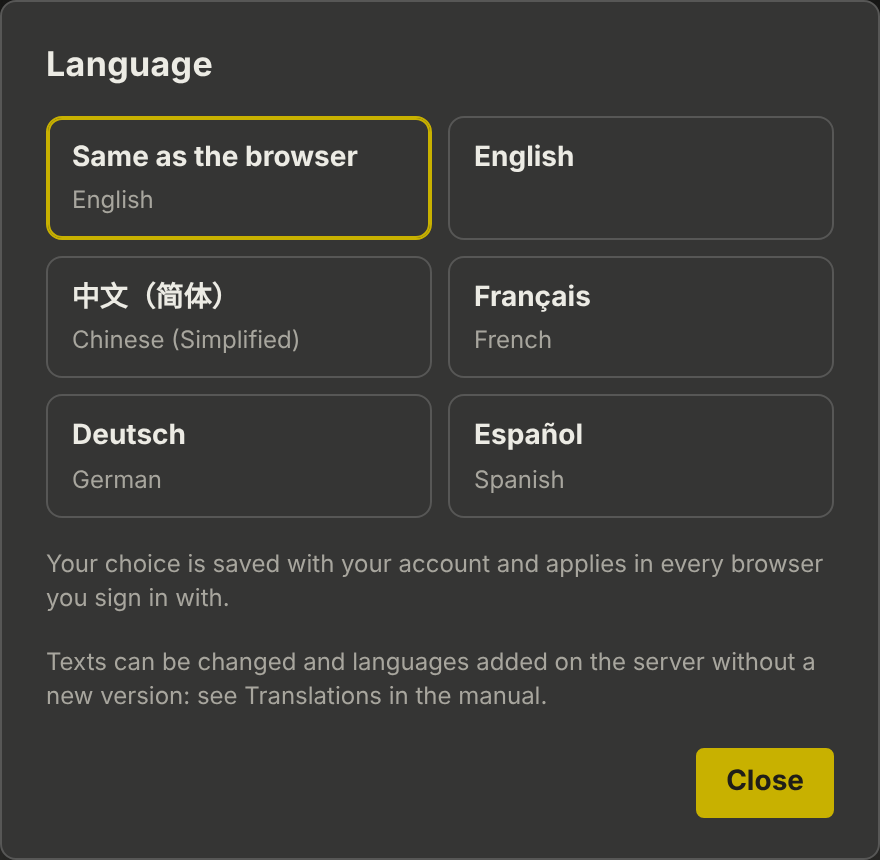
The choice is saved with your account. It applies in every browser and on every PC you sign in with, also in the single-PC installation. Same as the browser removes the saved choice: the app follows the browser’s language again.
Dates and times are shown the way the chosen language writes them. Labels, folder and file names, and notes are shown as they were written.
Changing texts and adding languages
Administrators can change any text of the interface and add languages, without a new version and without a restart. The texts are in translation tables, one JSON file per language:
{
  "_meta": { "name": "Deutsch", "english": "German" },
  "messages": {
    "Save": "Speichern",
    "{n} images added": "{n} Bilder hinzugefügt"
  }
}
The key of each entry is the English text; the value is the text shown. _meta.name is the name in the language list, _meta.english the English name below it.
The server reads two places and merges them:
| Folder | Content |
|---|---|
|
The tables that come with the app. Replaced by every update: do not change them. |
|
Your own tables. An update never touches them. Another folder can be set with |
An entry in your own table wins over the one that came with the app. An empty entry is ignored.
Changing a text
-
Copy the table of the language from
www/i18n, for examplede.json, into thetranslationsfolder (create the folder if needed). -
Keep only the entries you want to change, or keep them all. Change the texts on the right side.
-
Save the file as UTF-8.
-
Reload the page in the browser. The new texts apply at once.
Example: your company calls a box a "frame" and an annotator a "labeler":
{
  "messages": {
    "New box": "New frame",
    "Annotators per image": "Labelers per image"
  }
}
Saved as translations/en.json, this changes the English interface.
Adding a language
Copy en.json from www/i18n to translations/<code>.json, for example it.json for Italian or pt-BR.json for Brazilian Portuguese, set _meta, and translate the texts. The language appears in the language list at the next reload. Untranslated entries show the English text.
Rules for the texts
-
Keep placeholders in curly braces exactly as they are:
{name},{n},{total}. They are replaced by names and numbers. Their order in the sentence may change. -
Texts ending in a space, or starting with one, are put together with other texts: keep the space.
-
A table that is not valid JSON is ignored, and the server log names it. Check the file with a JSON validator if a change does not show.
-
After an update, new texts of the new version appear in English until your own table has them too. The tables in
www/i18nof the new version show which texts exist.
| The Spanish, French and Chinese tables were translated with care but not yet reviewed by native speakers. Corrections are welcome: send your table to HD Vision Systems so that the next version includes them. |