Troubleshooting
Start with the General checks: they help with every licensing problem. Then find your symptom in the sections below and work through its steps in order. The last section lists what to send to HD Vision Systems if the problem persists.
General checks
Check these points first:
-
Your licensing path. Where you bought the software and where it runs decide where the licence is held: on the LumiScan Key, in ctrlX WORKS, or in the License Manager of ctrlX OS. Apps running natively on ctrlX OS use neither the LumiScan Key nor CodeMeter Runtime. See Which Licensing Path Applies.
-
The CodeMeter Runtime version.
cmu --versionshows it (on Windowscmu32in the CodeMeter Command Prompt). LumiScan software requires CodeMeter Runtime 9.00 or later. See Installing CodeMeter Runtime. -
The key is available. On the License tab of CodeMeter Control Center, the LumiScan Key appears as CmStick/C with a serial number of the form
3-1234567. On a PC without a graphical interface,cmu --listlists it. See Recognising the key. -
The licences on the key and their expiry dates. In CodeMeter WebAdmin (), or with
cmu --list-content --serial <serial>(entry Expiration Time). -
On ctrlX OS: the system log. If a required licence is missing, the ctrlX OS system log names it.
The LumiScan Key and CodeMeter
Problem: The key is not detected
CodeMeter Control Center does not show the LumiScan Key, or cmu --list
reports 0 CmContainer(s) listed.
-
CodeMeter Runtime is not installed on the PC.
-
The CodeMeter service is not running.
cmu --listthen reportsCodeMeter not running. -
The key is not recognised at its USB port, for example when it is connected through a hub.
-
In a virtual machine: the USB device is not passed through to the virtual machine.
-
In a container: the software cannot reach CodeMeter Runtime on the host.
-
Run
cmu --version(on Windowscmu32in the CodeMeter Command Prompt) - expected: CodeMeter Runtime 9.00 or later is installed. -
Check the CodeMeter service - expected: on Windows, the status line of CodeMeter Control Center shows CodeMeter service is running; on Ubuntu,
systemctl status codemetershows that the service is running. -
Connect the key to a free USB port, directly at the PC - expected: the LED on the key flashes briefly, and Windows detects the new USB device.
-
Run
cmu --list- expected: it lists the LumiScan Key with its serial number. -
In a virtual machine: check that the USB device is passed through to the virtual machine, and that CodeMeter Runtime is installed inside it.
-
In a container: check on the host that the network server is enabled in CodeMeter WebAdmin (Configuration › Server › Server Access) - expected: the software reaches the key on TCP port 22350.
-
If CodeMeter Runtime is not installed: install CodeMeter Runtime 9.00 or later as described in Installing CodeMeter Runtime.
-
If the CodeMeter service is not running: start the service.
-
If the key is not recognised at its USB port: connect it to another USB port, preferably directly to the PC rather than through a hub.
-
If the USB device is not passed through to the virtual machine: pass it through, and install CodeMeter Runtime inside the virtual machine.
-
If the software in a container cannot reach the key: run CodeMeter Runtime with the key on the host, and enable the network server in CodeMeter WebAdmin on the host. See Virtual machines and containers.
Send the information listed under Information for support to licenses@hdvisionsystems.com, together with the output
of cmu --version and cmu --list, and whether the PC is a virtual machine or the software runs in a
container.
Licence updates
Problem: HD Vision Systems GmbH is not listed in the CmFAS Assistant
When you create a licence request, the vendor list of the CmFAS Assistant does not show HD Vision Systems GmbH (6000380).
-
The LumiScan Key was not selected on the License tab before you clicked License Update.
-
Check the License tab of CodeMeter Control Center - expected: your LumiScan Key (CmStick/C) is selected on the left before you click License Update.
-
If the key was not selected:
-
Close the assistant.
-
On the License tab, select your LumiScan Key on the left and click License Update.
-
Create the request again as described in Requesting a Licence Update.
-
On a PC without a graphical interface, create the request with cmu instead, see
Creating the request on the command line.
Send the information listed under Information for support to licenses@hdvisionsystems.com, together with the output
of cmu --list.
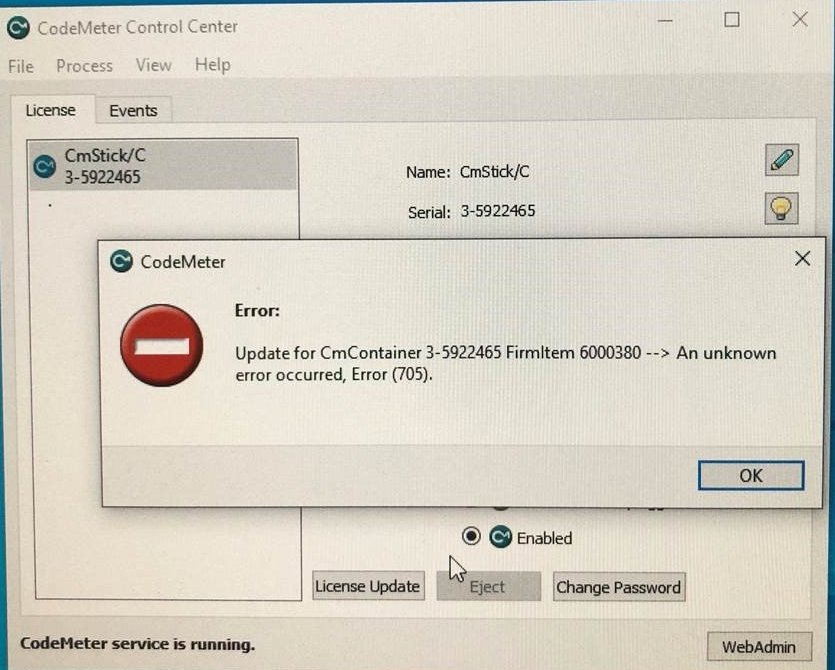
Problem: Error 705 when importing a licence update
-
The update has already been imported. Each update file can be used only once.
-
Another licence update was imported onto the LumiScan Key after the request was created: the update file no longer matches the current state of the key.
-
The update is intended for another LumiScan Key.
-
Check whether the new licences are already on the key, in CodeMeter WebAdmin () or with
cmu --list-content --serial <serial>- expected: if they are listed, the update has already been imported. -
Compare the serial number in the file name with the serial number of your LumiScan Key - expected: the same serial number. The serial number is printed on the key and shown in CodeMeter Control Center.
-
Check whether another licence update was imported onto this key after you created the request.
-
If the update has already been imported: nothing more to do. The new licences are available.
-
If another update was imported in between, or the update is intended for another key: if the new licences are not available, create a new licence request from your LumiScan Key and send it to licenses@hdvisionsystems.com. Until you have imported the new update, do not import any other licence updates onto this key.
Send the information listed under Information for support to licenses@hdvisionsystems.com, together with the name of the update file.
Problem: The app does not see the new licence after the import
You imported the licence update without an error, but a LumiScan application does not use the new licence.
-
The application was already running during the import. Applications that were already running may have to be restarted to use the new licences.
-
The update was not written to the key, see Problem: Error 705 when importing a licence update.
-
Check whether the new licence is on the key, in CodeMeter WebAdmin () or with
cmu --list-content --serial <serial>- expected: it is listed. -
Check whether the application was started before the import.
-
If the application was already running: restart it.
-
If the licence is not on the key: import the update again as described in Importing a Licence Update. If the import fails with error 705, see Problem: Error 705 when importing a licence update.
Send the information listed under Information for support to licenses@hdvisionsystems.com, together with the output
of cmu --list-content --serial <serial>.
Starting an application
Problem: "User maximum reached!" when starting a LumiScan application
-
All licences on the LumiScan Key for this application are already in use by other instances of the application that use this key.
-
The software is to run on several devices at the same time with one LumiScan Key. One key is needed for each device on which the software runs at the same time.
-
Check whether other instances of the application use this LumiScan Key - expected: none, or fewer than the licences on the key allow.
-
If other instances use the licences: close them and click Retry.
-
If the software is to run on several devices at the same time: use one LumiScan Key per device. See One key per device.
-
If you permanently need more licences at the same time: create a licence request and state the number you need in the e-mail. See Requesting a Licence Update.
Send the information listed under Information for support to licenses@hdvisionsystems.com, together with the number of instances you need to run at the same time.
Problem: An engineering app no longer starts
An engineering app bought from HD Vision Systems, for example LumiScan Annotation Framework, LumiScan Training Framework or LumiScan VGR Engineering, can no longer be used.
-
The annual subscription has expired.
-
Check the expiry date of the licence - expected: it lies in the future.
-
In CodeMeter Control Center, click WebAdmin, open and select your LumiScan Key; or
-
run
cmu --list-content --serial <serial>and read the entry Expiration Time.
-
-
If the subscription has expired: renew the licence as described in Renewing Engineering Licences:
-
The renewal requires a valid subscription. If your subscription has been cancelled or has ended, contact licenses@hdvisionsystems.com to renew the subscription first.
-
Create a licence request and send it to licenses@hdvisionsystems.com. State that you want to renew your engineering licences, and give your customer or order number.
-
Import the licence update that you receive.
You do not need to reinstall the software. Your projects and data are not affected.
-
Send the information listed under Information for support to licenses@hdvisionsystems.com, together with the expiry date shown for the licence.
Problem: A ctrlX app stops shortly after starting
A LumiScan app on ctrlX OS stops shortly after it starts, or stops while it runs.
-
A required ctrlX licence is missing on the ctrlX OS device on which the app runs.
-
The app needs more licences than are installed, for example LumiScan CamDriver needs one per camera.
-
The licence has the wrong version: version 2 of LumiScan AI Object Matching, LumiScan Calibration and LumiScan CamDriver requires the
-V2NNlicence. Licences ending in-NNNNdo not work with version 2. -
A licence is no longer available while the app is running. The app renews its licences every 30 minutes.
-
Read the ctrlX OS system log - expected: it names the missing licence.
-
Compare the licence with the part numbers and the counting rules in Licence Reference - expected: the right part number, and as many licences as the app needs.
-
Check the License Manager of ctrlX OS on the device on which the app runs - expected: the licence is available there.
-
If the licence is missing, or of the wrong version: buy the licence in the ctrlX Store and activate it in the License Manager of ctrlX OS on this device. Follow the Bosch Rexroth documentation for ctrlX OS.
-
If the app needs more licences: add licences until they match the counting rules.
-
If a licence is no longer available: make it available again in the License Manager of ctrlX OS, then start the app again.
Send the information listed under Information for support to licenses@hdvisionsystems.com, together with the lines of the ctrlX OS system log that name the licence.
Information for support
If the problem persists, contact licenses@hdvisionsystems.com. Please state:
-
your company, and the order or invoice number;
-
the serial number of your LumiScan Key, if your licensing path uses one;
-
the product and its version;
-
the exact error message, and the date and time it appeared;
-
the operating system: Windows 11, Ubuntu 24.04, or ctrlX OS and its version, and whether the software runs in a virtual machine or a container;
-
the licensing path: bought from HD Vision Systems or in the ctrlX Store;
-
the CodeMeter Runtime version (
cmu --version) and the output ofcmu --listandcmu --list-content --serial <serial>; -
on ctrlX OS, the lines of the ctrlX OS system log that name the licence;
-
for a problem with a licence update, the name of the request file (
.WibuCmRaC) or the update file (.WibuCmRaU).