Installing CodeMeter Runtime
Every PC that uses a LumiScan Key needs the CodeMeter Runtime by WIBU-SYSTEMS AG. This applies to both licensing paths that use the key: software bought from HD Vision Systems, and software bought in the ctrlX Store that runs on Windows 11.
LumiScan software requires CodeMeter Runtime 9.00 or later. This minimum applies to all LumiScan products. If an older version is installed, update it before installing or starting LumiScan software.
| Applications running natively on ctrlX OS do not need CodeMeter Runtime (see Bought in the ctrlX Store, Running on ctrlX OS). |
Windows 11
-
Download the CodeMeter User Runtime for Windows from the WIBU-SYSTEMS user software page.
-
Run the installer and follow the manufacturer’s instructions. Administrator rights are required.
-
Connect the LumiScan Key to a free USB port.
The LED on the key flashes briefly, and Windows detects the new USB device.
-
Open CodeMeter Control Center, for example through the Windows search.
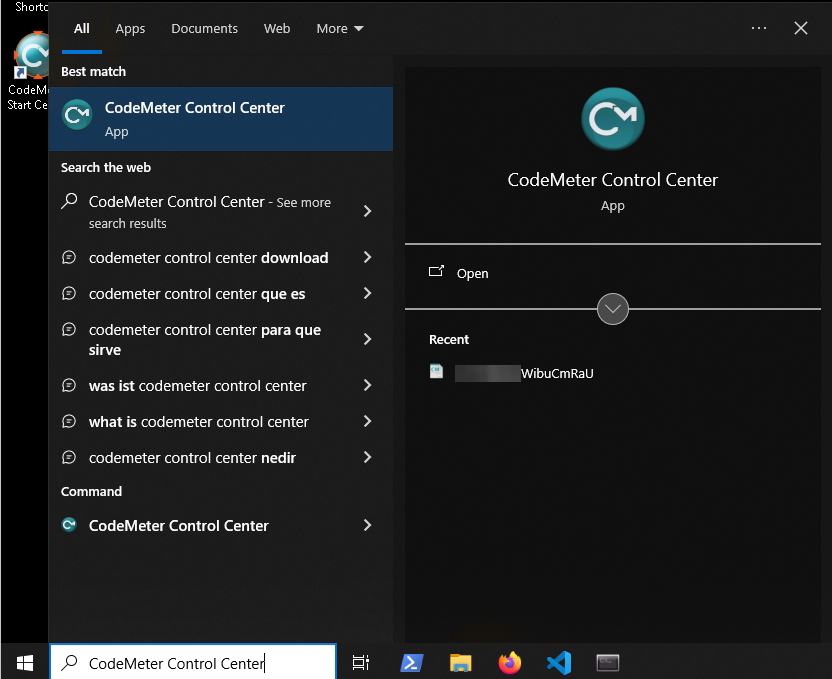
The LumiScan Key appears on the License tab as CmStick/C (see Recognising the key).
Ubuntu 24.04
-
Download the CodeMeter User Runtime for Linux as a
.debpackage for your architecture (x86_64 or arm64) from the WIBU-SYSTEMS user software page. -
Install the package:
sudo apt install ./codemeter_*.deb -
Check that the CodeMeter service is running:
systemctl status codemeter -
Connect the LumiScan Key to a free USB port.
Checking the installation
On both systems, the command-line tool cmu shows the installed version and the connected containers. On Windows, it is called cmu32 and is available in the CodeMeter Command Prompt.
cmu --version
cmu --list
cmu --list lists the LumiScan Key with its serial number. If it reports 0 CmContainer(s) listed, see Key not detected.
Virtual machines and containers
The LumiScan Key is a USB device. If LumiScan software runs in a virtual machine, pass the USB device through to the virtual machine and install CodeMeter Runtime inside it.
If LumiScan software runs in a container, run CodeMeter Runtime with the key on the host and let the software in the container access it over the network. To do so, enable the network server in CodeMeter WebAdmin on the host (Configuration › Server › Server Access). The software then reaches the key on TCP port 22350.