Single-PC Installation
For one person on one PC, for example a laptop at the production line, a PC without network or a trial, LumiScan Annotation Web runs on that PC only. It is the same program as on a server, in a window of its own and without sign-in.
Installing
-
Run the LumiScan Annotation Web setup (
setup.exe) and follow it. It installs intoC:\Program Files\HD Vision Systems GmbH\LumiScan Annotation Weband adds LumiScan Annotation Web to the start menu and the desktop. The Visual C++ runtime is installed with it if missing. -
Start LumiScan Annotation Web. The window opens maximised; there is no sign-in.
-
Add your images under your name → Projects → New project, choosing an existing image folder or a new one, as described in Projects. On the empty start screen, New project opens the dialog directly.
Requirements: Windows 10 or 11 (64 bit) with the Microsoft Edge WebView2 Runtime, which is part of Windows 11 and of current Windows 10 installations. Without it, LumiScan Annotation opens in the default web browser instead.
Working
Everything works as on a server, with these differences:
-
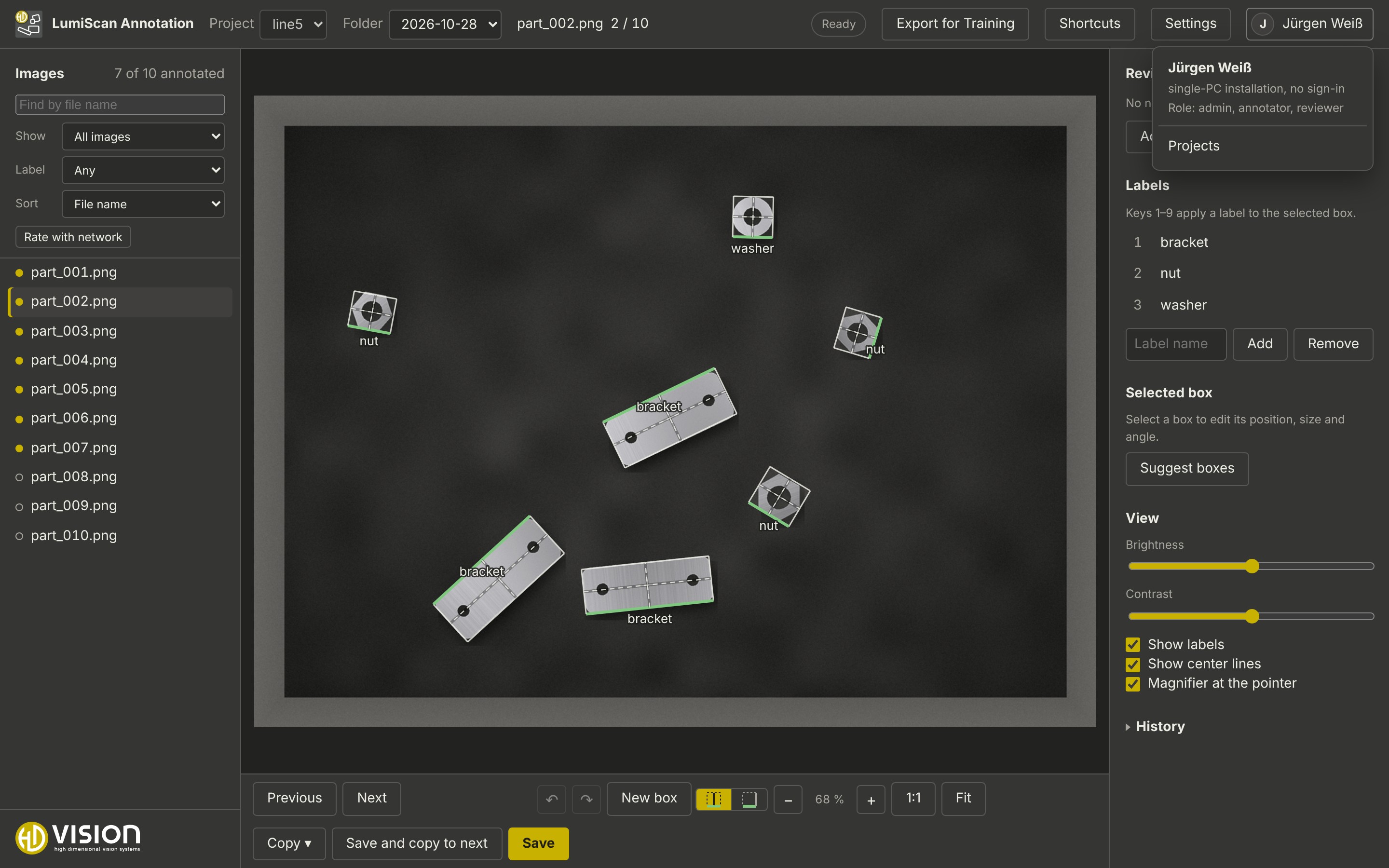
There is no sign-in. You are the local account, named after your Windows user, and hold every role: annotator, reviewer and admin.
-
The user menu says single-PC installation, no sign-in; there is no Log out, Change password or Users and sign-in.
-
Closing the window with unsaved changes asks first: Save, Discard or Cancel. Closing stops LumiScan Annotation.
-
Starting it a second time brings the open window to the front.
-
Only this PC can reach it (127.0.0.1). Other PCs cannot open it, even in the same network.
Data folder
Everything the program writes is in your user profile:
%LOCALAPPDATA%\HD Vision Systems\LumiScan Annotation Web\
    config.json      configuration (created at the first start)
    networks\        trained networks for box suggestions (created at the first start)
    projects\        projects created here (images you add, annotation files), from the first one on
    backups\         automatic backups
    logs\            log files
Image folders you add as projects stay where they are; their annotation files are written next to the images, as on a server.
Box suggestions without a server
The single-PC installation runs your trained networks itself, without a box suggestion service:
-
Copy the exported network folder from LumiScan Training (with
network.onnxandnetwork_description.json) intonetworks\in the data folder, for examplenetworks\line-5-parts\. Networks of LumiScan Training since mid-2025 (ORTM,RRTM) and older ones work; networks for the Hailo accelerator do not. A folder that cannot be loaded does not affect the others: the project settings name it with the reason (section Box suggestions). -
Close and start LumiScan Annotation again.
-
In the project settings, choose the network under Box suggestions.
Suggest boxes (P) and Rate with network then work as on a server.
On the graphics card
The networks run on the best device the PC has. Nothing needs to be set up:
| Device | When |
|---|---|
NVIDIA graphics card (CUDA) |
The NVIDIA driver, CUDA 12 and cuDNN 9 are installed, with their folders on the |
Processor |
Otherwise. How long one image takes depends on the network and the PC. |
The log (logs\lumiscan-annotation-server.log in the data folder) names the device of every network at the start, for example network 'line-5-parts' (3 classes, input anyxany) on CUDA (GPU 0). If a graphics card cannot be used, a warning there says why, for example which CUDA library is missing; the networks then run on the processor.
To choose the device yourself, set device in config.json and start LumiScan Annotation again:
"pre_annotation": { "type": "onnx", "networks": "networks", "device": "cpu" }
|
|
|
which graphics card, when the PC has several: |
The first box suggestion after the start is not slower than the next ones: the networks are prepared on the graphics card when LumiScan Annotation starts.
Licence
LumiScan Annotation needs the LumiScan Key (a CodeMeter USB key) plugged into this PC, and the CodeMeter Runtime (see Licence). Without a valid licence the app says so and stops accepting changes until the key is back.
Updates
Once a day LumiScan Annotation looks on docs.hdvisionsystems.com whether a newer version is out. If so, Version … available appears in the top bar; it links to the release notes. Nothing is downloaded or installed by itself: install the new setup over the old one, your data stays.
To switch the check off, set "update_check": false in config.json.