How To: Mark Positions on Camera Images with Overlays
This guide shows a camera image from LumiScan Cam Driver in LumiScan Cockpit and draws fixed markers on it: a cross at the image centre, and optionally circles and rectangles. Such overlays help to align a camera, to check a part against a region of interest, or to show an operator where a part has to be.
When you have finished, every image of the camera is shown in Cockpit with your markers on top.
Before you start
-
LumiScan Cockpit and LumiScan Cam Driver are installed and running on the same ctrlX CORE.
-
The camera is connected and has captured at least one image. If not, see the LumiScan Cam Driver manual.
-
You can open the ctrlX web interface in a browser on your PC.
-
Basic knowledge of JSON.
How it fits together
Cockpit shows the images that other LumiScan applications put on the ctrlX Data Layer. It produces no
images of its own. For LumiScan Cam Driver, it lists every camera module found under
hdvisionsystems/lumiscan-cam-driver.
Overlays are not part of the image. They are defined in Cockpit’s settings file,
lumiscan-cockpit.json, under overlay, keyed by <application>/<image name>, and Cockpit draws
them on every image with that key. The file is read when Cockpit starts, so a changed overlay appears
after a restart. All properties are described in
Overlays.
Step 1 - Check that the camera delivers images
-
Open the ctrlX web interface.
-
Under Settings > Apps, check that LumiScan Cam Driver is running.
-
Capture an image with the camera, as described in the LumiScan Cam Driver manual.
Step 2 - Open the image in Cockpit
-
Click LumiScan Cockpit in the sidebar of the ctrlX web interface.
The application overview lists the available images, grouped by the application that publishes them. For LumiScan Cam Driver, each camera module is one entry, named after the module.
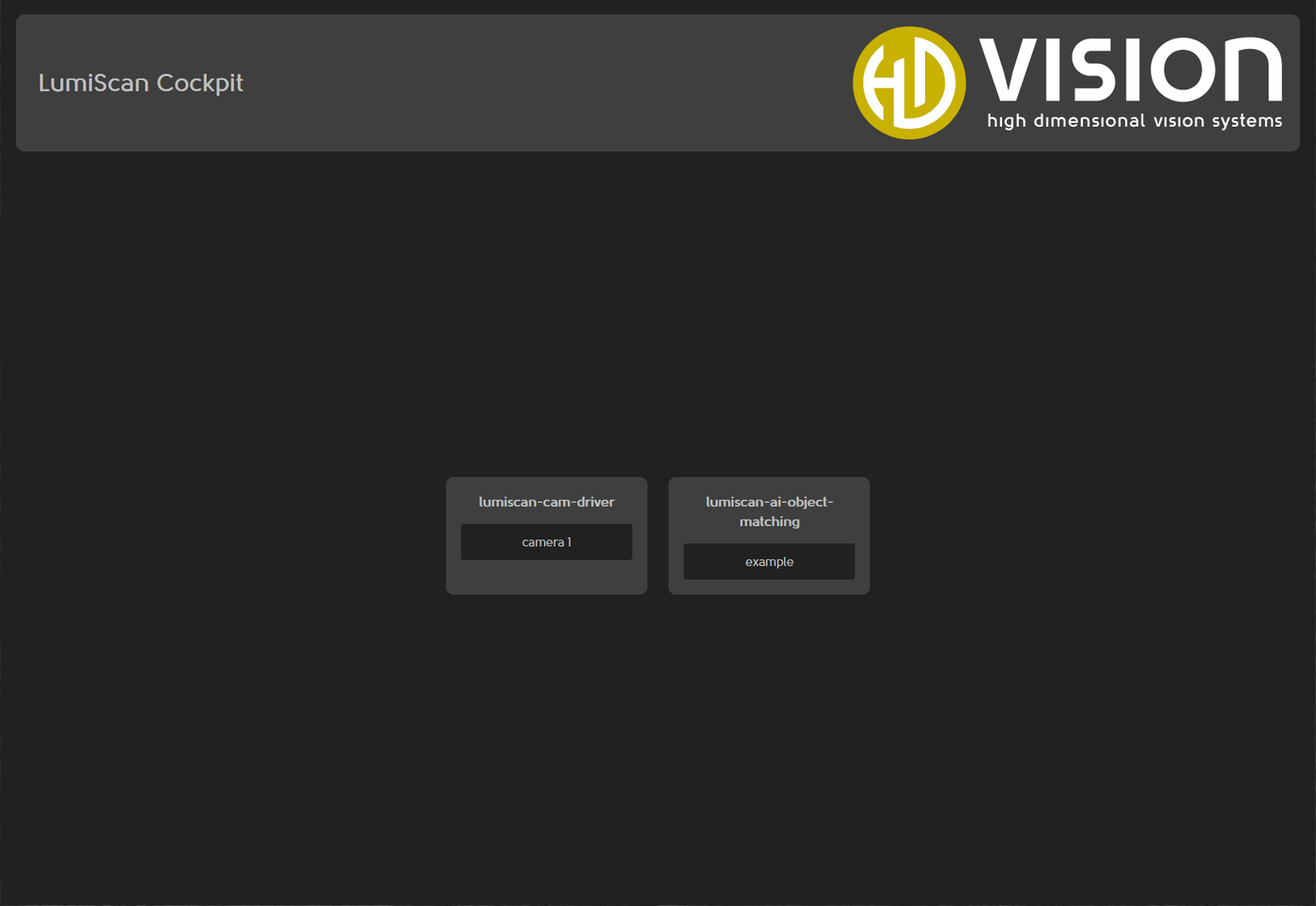 Figure 1. Application overview of LumiScan Cockpit
 -
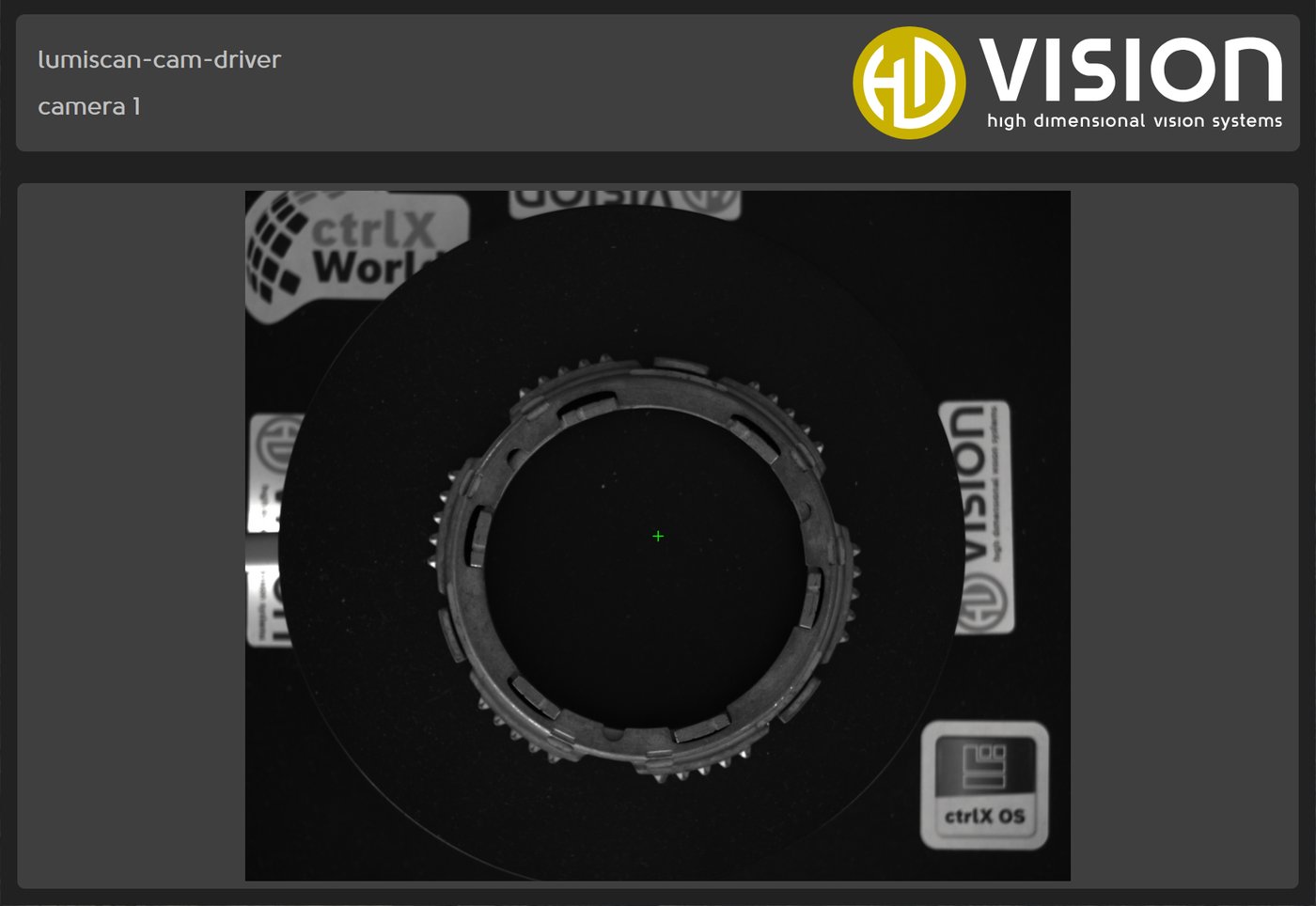
Click the name of the image. It opens in a new browser tab.
Note the two names: the application (lumiscan-cam-driver) and the image (in the example
camera 1). Together they form the key of the overlay.
Step 3 - Open Cockpit’s settings file
-
In the ctrlX web interface, go to Home > Manage app data and click Open file view.
-
Open the folder
lumiscan-cockpit. -
Click
lumiscan-cockpit.json. The file opens in the editor on the right.The editor checks the file against its schema and marks errors.
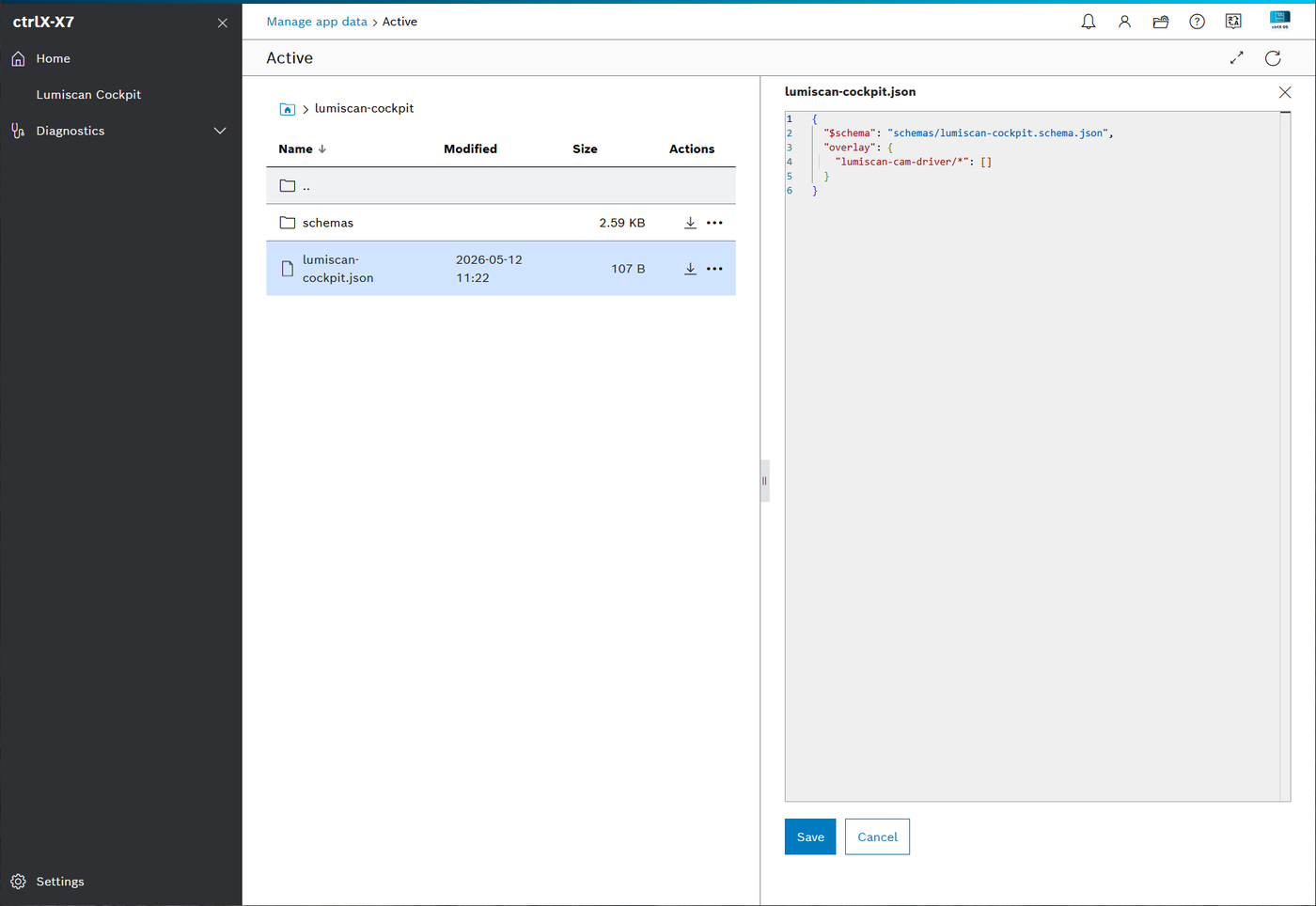 Figure 2. Cockpit’s settings file in the file view of the ctrlX web interface
Step 4 - Add an overlay
Add an entry under overlay for your image, with one element per shape. This example draws a green
cross, 30 pixels wide, at the centre of the image:
{
  "$schema": "schemas/lumiscan-cockpit.schema.json",
  "overlay": {
    "lumiscan-cam-driver/camera 1": [
      {
        "color": "green",
        "shape": "cross",
        "centerX": 0.5,
        "centerY": 0.5,
        "width": 30,
        "height": 30
      }
    ]
  }
}
Each element has these properties:
color-
A named colour (
red,green,blue,black,white,yellow,cyan,magenta) or six hex digits,#RRGGBB. A colour that cannot be read is drawn white. shape-
rectangle,circleorcross. centerX,centerY-
The centre of the shape.
width,height-
The size of the shape. For a circle,
widthis the diameter.
Position and size follow one rule: values below 1.0 are relative to the image (0.5 is the
middle), values of 1.0 and above are pixels. So the cross above sits in the middle of every image,
whatever the resolution, and is 30 pixels wide.
To draw on several images at once, use * in the key:
-
lumiscan-cam-driver/*- every image of LumiScan Cam Driver -
*/resultImage- the image namedresultImageof every application -
/- every image
An image that matches several keys shows all of their overlays.
Step 5 - Save and restart Cockpit
-
Check that the editor marks no errors, then click Save.
-
Under Settings > Apps, select LumiScan Cockpit and click Restart.
-
Open the image in Cockpit again, as in step 2.
Expected: the image shows a green cross at its centre.
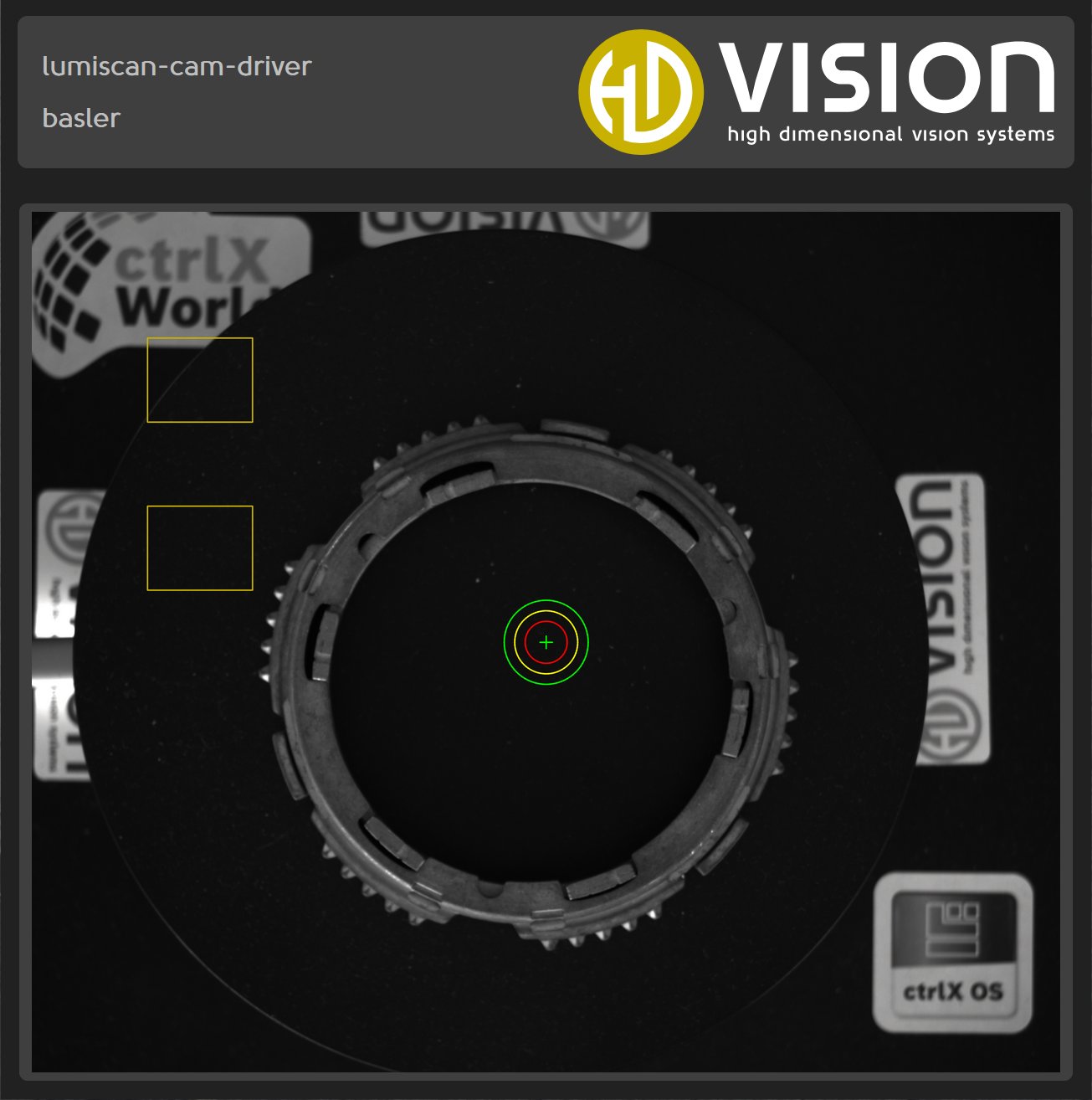
Example: several overlays on all camera images
This configuration draws, on every image of LumiScan Cam Driver, a centre cross, three concentric
circles as a target for alignment, and two rectangles marking regions of interest. The circles use
height 0, since only the width (the diameter) is used. The rectangles use pixel coordinates.
{
  "$schema": "schemas/lumiscan-cockpit.schema.json",
  "overlay": {
    "lumiscan-cam-driver/*": [
      { "color": "green", "shape": "cross", "centerX": 0.5, "centerY": 0.5, "width": 30, "height": 30 },
      { "color": "red", "shape": "circle", "centerX": 0.5, "centerY": 0.5, "width": 100, "height": 0 },
      { "color": "yellow", "shape": "circle", "centerX": 0.5, "centerY": 0.5, "width": 150, "height": 0 },
      { "color": "green", "shape": "circle", "centerX": 0.5, "centerY": 0.5, "width": 200, "height": 0 },
      { "color": "#c8b100", "shape": "rectangle", "centerX": 400, "centerY": 400, "width": 250, "height": 200 },
      { "color": "#c8b100", "shape": "rectangle", "centerX": 400, "centerY": 800, "width": 250, "height": 200 }
    ]
  }
}
Result
-
LumiScan Cockpit shows the images of LumiScan Cam Driver with your overlays.
-
The markers stay at the configured position on every new image.
-
To change them, edit
lumiscan-cockpit.jsonand restart Cockpit.
|
|
If an overlay does not appear, check the key against the names in the application overview, and see Troubleshooting.