How To: Annotate Images with Oriented Bounding Boxes
This guide takes you from the installation of LumiScan Annotation to a set of images annotated with oriented bounding boxes. The annotations are the training data for neural networks, for example for LumiScan AI Object Matching, trained with LumiScan Training.
When you have finished:
-
LumiScan Annotation is installed and licensed,
-
your images are loaded,
-
the object classes are defined as labels,
-
the objects in the images are marked with oriented (rotated) bounding boxes, and the annotations are saved next to the images.
This guide covers the operation of the software. How to annotate well - what a box should include, how to handle partly hidden objects - depends on the application and is agreed with the team that trains the network.
Before you start
-
Windows 11 PC with mouse and keyboard
-
LumiScan Key with a licence for LumiScan Annotation, see Requirements
-
The installer
Installer_LumiScan_Annotation_va_b_c_d.exe, wherea.b.c.dis the version -
The images to annotate, as PNG files
How it fits together
LumiScan Annotation shows one image at a time. You draw a box around each object and give it a label, the name of its class. Boxes can be rotated, so they fit objects that lie at any angle.
When you save, the annotations of the image are written as a CSV file next to the image. A JSON file records who saved, when, and which image and file. Several users can annotate the same folders: each save is recorded with the user selected in the application.
Step 1 - Install CodeMeter Runtime
LumiScan Annotation is licensed with the LumiScan Key and needs CodeMeter Runtime 9.00 or later.
-
Check whether CodeMeter Runtime is installed, for example in the Windows Start menu.
-
If not, install it and connect the LumiScan Key to a free USB port, as described in Installing CodeMeter Runtime.
Step 2 - Install LumiScan Annotation
-
Close all open applications.
-
Double-click
Installer_LumiScan_Annotation_va_b_c_d.exe. -
Accept the licence terms.
-
Keep the default installation folder or choose another one with Browse, then click Next.
-
Click Install, then OK and Finish.
LumiScan Annotation can now be started from the Windows Start menu. The detailed steps are in Installing LumiScan Annotation on Windows.
Step 3 - Prepare the images
Put the PNG images to annotate into one folder. To work on several sets, give each set its own folder below a common folder:
<data folder>
├── <set A>
│   ├── image_001.png
│   └── image_002.png
└── <set B>
    ├── image_003.png
    └── image_004.png
You then select the common folder once and switch between the sets in the application. See Folder Structure.
Step 4 - Start the application and select the images
-
Start LumiScan Annotation. On the first start, the window is empty.
-
Click Menu > Settings.
-
Click Set Folder and select the folder with the images, or the common folder of several sets.
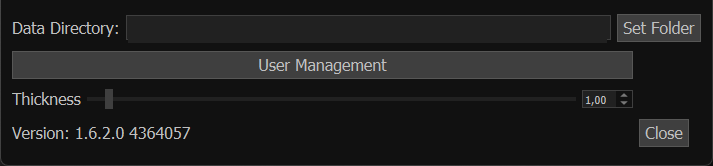 Figure 1. Settings window with the data directory
 -
Optional: click User Management and add your user name, then select it in the User field of the main window. Every save is recorded with this name.
-
Close the settings window.
Expected: the images are listed under List of Pictures. With several sets, the Folder field at the top selects the set.
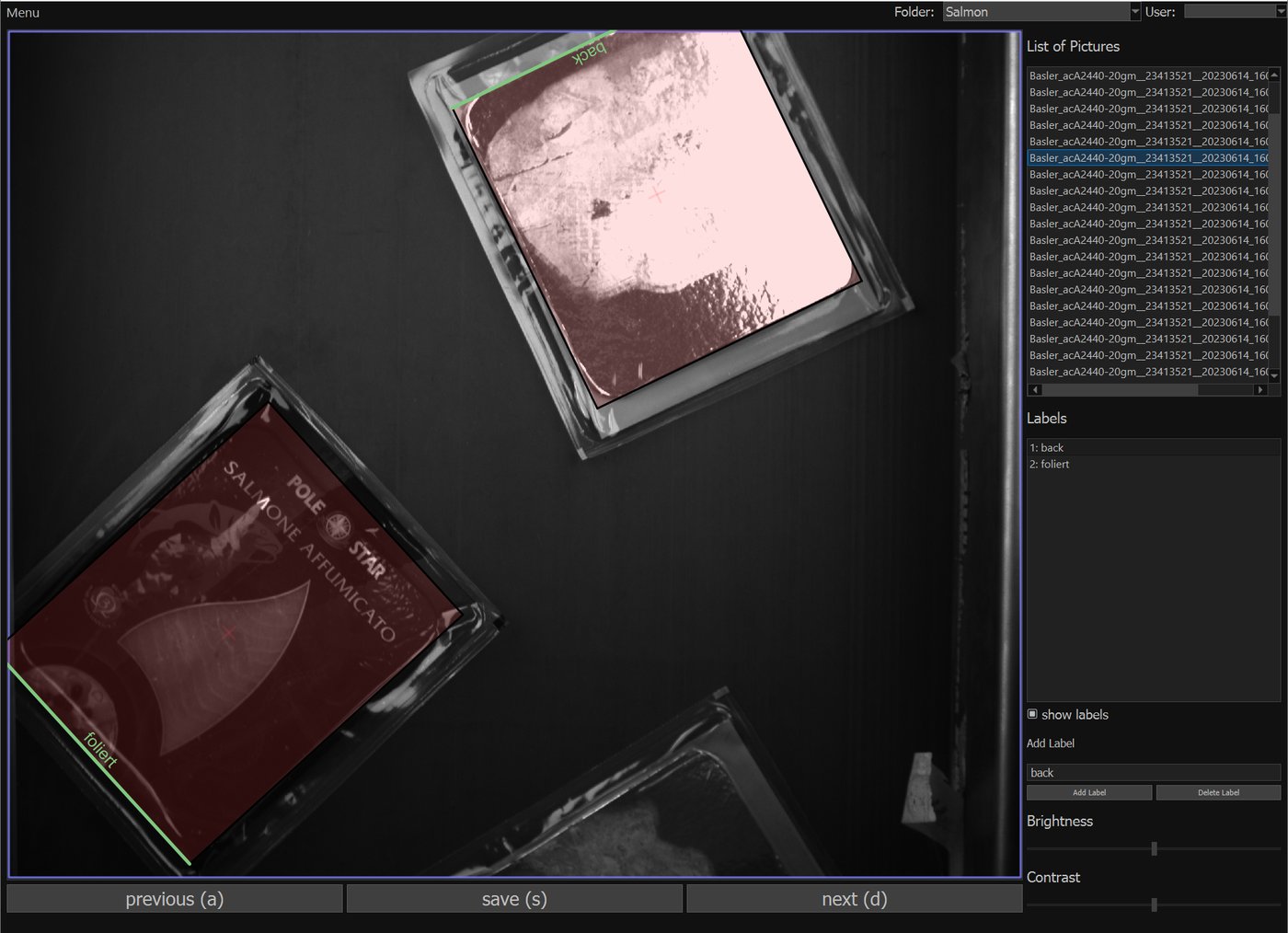
The main window shows, from left to right, the image with its boxes, the list of images, the list of labels, the field to add labels, and sliders for brightness and contrast. The buttons below the image go to the previous image, save, and go to the next image. All elements are described in User Interface.
Step 5 - Create the labels
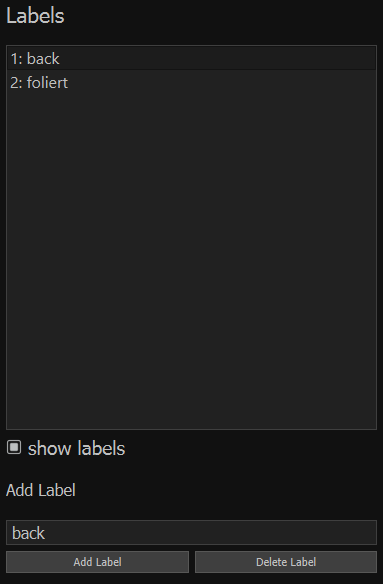
A label is the name of an object class, for example back or foliert. Create one label for each class
the network is to tell apart.
-
Type the name in the field under Add Label.
-
Click Add Label.
The label appears in the label list with a number. The selected label is given to every new box.
Step 6 - Draw an oriented bounding box
-
Select the label of the object in the label list.
-
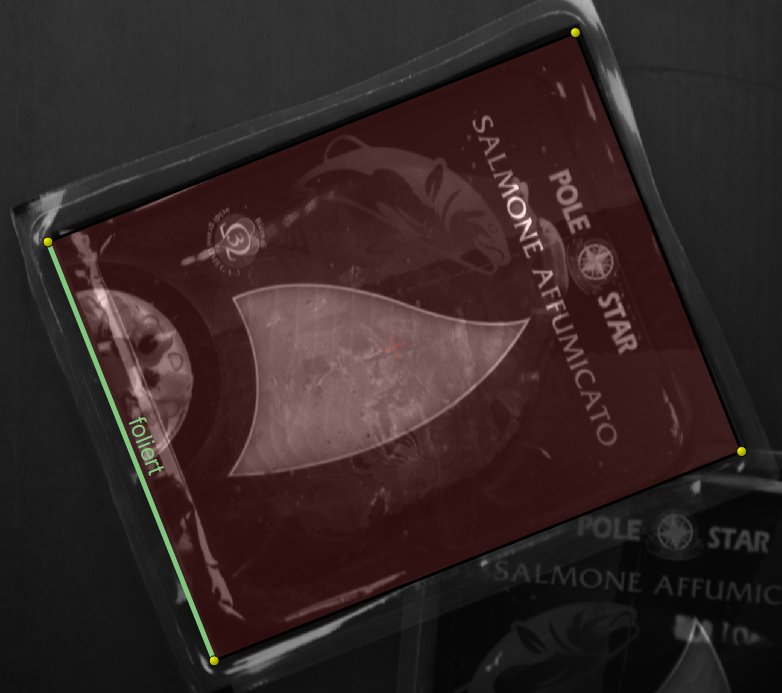
Double-click on the image where the bottom edge of the box is to be. This edge is always drawn green.
-
Click on the top edge of the object, without holding the mouse button. This sets the height.
-
Click on a side of the object, again without holding the button. This sets the width.
The box is drawn with the selected label. Its green edge marks the bottom of the object, so the box also records which way the object faces.
Step 7 - Correct and delete boxes
Click a box to select it. A selected box shows four yellow corner handles. Then:
-
drag inside the box to move it,
-
drag an edge to change its size in that direction,
-
drag a corner to rotate it around its centre,
-
select another label, or press its number
1to9, to change the label, -
right-click the box to delete it.
For fine adjustments, use the keyboard: Ctrl/Shift with i, j, k, l moves the box by one or
ten pixels, with u and o rotates it by one or ten degrees. All shortcuts are listed in
Image Annotation and Shortcuts for Common Operations.
Step 8 - Save and go to the next image
-
Click save below the image, or press
s. -
Click next, or press
d, to go to the next image. previous, ora, goes back.

Expected: next to the image, a CSV file with its boxes and a JSON file with the user name, the time, the image name and the name of the CSV file. The image is highlighted in the image list.
When consecutive images differ only a little, press Alt + s to save and copy the boxes to the
next image. Then only correct what has changed.
|
Result
-
LumiScan Annotation is installed and licensed.
-
The images are loaded, and the object classes are defined as labels.
-
The objects are marked with oriented bounding boxes, and the annotations are saved next to the images.
The folders with the images and their annotation files are the input for training. Answers to common questions are in the FAQ, problems in Troubleshooting.