Troubleshooting
This page starts with general checks that you do first. Then find your symptom and work through the diagnostic procedure and the resolution. If the problem persists, send the information listed under Information for support to support.
General checks
-
Check that CodeMeter Runtime 9.00 or later is installed and the LumiScan Key is connected (see Installing CodeMeter Runtime). Licence problems - for example a key that is not detected or the message
User maximum reached!- are described in Licensing: Troubleshooting. -
Check the role of each system. At the first start, the program opens in the Runner role. The role is the value of
profileinC:\Users\<UserName>\AppData\Local\HD Vision Systems GmbH\LumiScan File Transfer\settings\settings.json:RUNNERorTRAINER, in capital letters only (see Switching Roles). -
Check that the folders for the Runner and the Trainer exist and have the required structure (see Folder Structure).
-
Settings that have been checked successfully are saved in the registry and loaded automatically the next time the program is started.
Problem: Save reports invalid settings
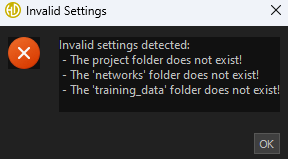
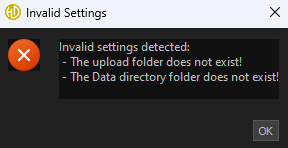
When you click Save in the settings window, a message about invalid settings is displayed. The message names the setting that is incorrect, for example a directory that does not exist.
-
A configured directory does not exist.
-
Runner: the Annotated Data Directory does not contain the subfolders
networksandtraining_data.
-
Read the message - expected: it names the setting that is incorrect.
-
Check the configured directories in the settings window (Menu > Settings) - expected: every directory exists. Runner: Annotated Data Directory. Trainer: Training Data Directory and Trained Network Directory.
-
Runner: check the content of the Annotated Data Directory - expected: it contains the subfolders
networksandtraining_data. These names are predefined and cannot be changed.
-
If a configured directory does not exist:
-
Create the directory, or select an existing directory in the settings window.
-
Click Save again.
The settings are checked again. If they are correct, they are saved in the registry and loaded automatically the next time the program is started.
-
-
If the Runner subfolders are missing:
-
Create the subfolders
networksandtraining_datain the Runner folder, as described under Folder Structure. -
Select the Runner folder as Annotated Data Directory and click Save again.
-
Send the information listed under Information for support to support, together with a screenshot of the message and the paths of the configured directories.
Problem: The remote display stays Offline
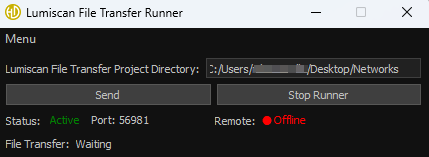
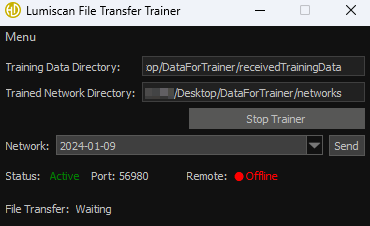
After Start Runner or Start Trainer, the status changes to Active, but the remote display (Remote) shows Offline instead of Online.
-
The other role has not been started. Online appears only when the other role is started and connected.
-
Destination IP is not the IPv4 address of the system on which the other role runs.
-
Port and Destination Port do not match on both sides.
-
The ports are not permitted in the firewall.
-
Check the status display of the other role (Runner or Trainer) - expected: Active.
-
On both systems, open Menu > Settings and check Destination IP - expected: the IPv4 address of the system on which the other role runs.
-
Compare the ports on both systems - expected: the Port of the Runner is the Destination Port of the Trainer, and the Port of the Trainer is the Destination Port of the Runner.
-
Ask your IT department whether the ports are permitted in the firewall - expected: both ports are permitted.
-
If the other role has not been started: click Start Runner or Start Trainer on the other system. Wait until the remote display shows Online.
-
If Destination IP is wrong: enter the IPv4 address of the other system as Destination IP and click Save. Ask your IT department for the correct address.
-
If the ports do not match: set Port and Destination Port so that they match on both sides and click Save on both systems.
-
If the firewall blocks the ports: ask your IT department which ports you can use and which are permitted in your firewall settings, and set them on both systems.
Send the information listed under Information for support to support, together with the Port, Destination IP and Destination Port of both systems and screenshots of both windows.
Information for support
Have this information ready when you contact support:
-
Product and version: LumiScan File Transfer and its version. The version is part of the installer file name
Installer_LumiScan_File_Transfer_va_b_c_d.exe; the settings window also shows version information. -
Operating system: Windows 11.
-
The serial number of the LumiScan Key (
3-…, printed on the key). -
The role of each system (Runner or Trainer) and the network settings of both systems: Port, Destination IP and Destination Port.
-
The status and remote displays of both systems (status Active or not, remote Online or Offline).
-
The exact error message, a screenshot and the date and time the problem occurred.
-
The settings file
C:\Users\<UserName>\AppData\Local\HD Vision Systems GmbH\LumiScan File Transfer\settings\settings.json.
Contact customer success at customer.success@hdvisionsystems.com or by phone at +49 6221 6721905. For licences, contact licenses@hdvisionsystems.com.