Importing a Licence Update
When HD Vision Systems has processed your licence request, you receive a licence update file (.WibuCmRaU). Its file name contains the serial number of the LumiScan Key it is intended for.
| Do not remove the LumiScan Key while the licence update is being written. |
Importing with the CmFAS Assistant
-
Save the
.WibuCmRaUfile on the PC to which the LumiScan Key is connected. -
Check that the serial number in the file name matches the serial number of your LumiScan Key.
-
Open CodeMeter Control Center.
-
On the License tab, select your LumiScan Key on the left and click License Update.
The CmFAS Assistant opens.
-
On the welcome page, click Next.
-
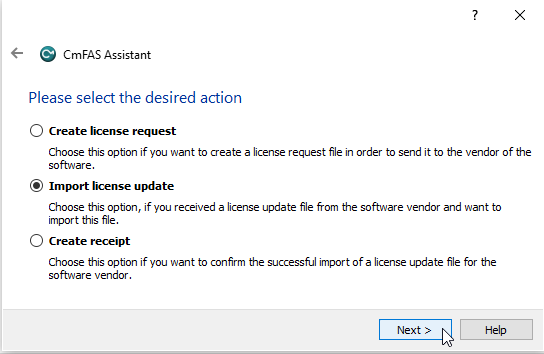
Select Import license update and click Next.
-
Click …, select the
.WibuCmRaUfile and click Commit.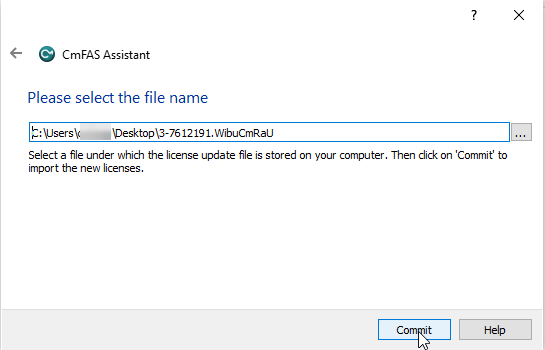
The licence update is written to the LumiScan Key.
-
Click Finish.
The new licences are available immediately. LumiScan applications that are already running may have to be restarted to use them.
Importing from the menu
You can also import the update file without the CmFAS Assistant:
-
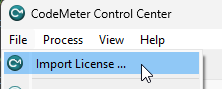
In CodeMeter Control Center, select .
-
Select the
.WibuCmRaUfile and click Open.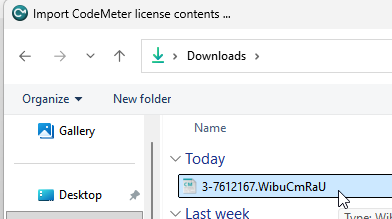
You can also drag the .WibuCmRaU file onto the CodeMeter Control Center window.
|
Importing on the command line
On a PC without a graphical interface, use cmu (on Windows: cmu32 in the CodeMeter Command Prompt). Replace 3-1234567 with the serial number of your LumiScan Key:
cmu --import --file 3-1234567.WibuCmRaUIf the import fails with error 705, see Error 705 during import.