Setup Camera IP address
-
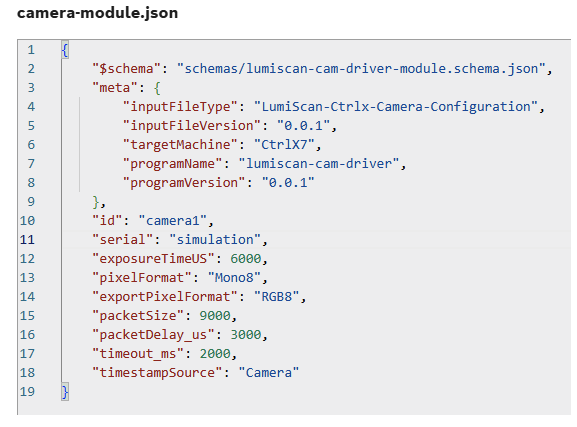
Make sure you only use one camera module and set serial to simulation
-
Restart LumiScan-Cam-Driver
-
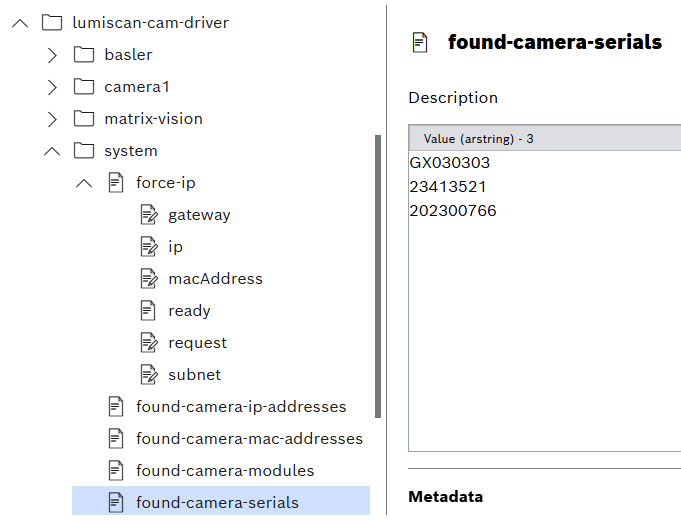
You can see all found camera under
hdvisionsystems/lumiscan-cam-driver/system/found-camera-serials -
Find the camera serial you want to set
i.e. GX030303 in above image. It present as first element in the list.
-
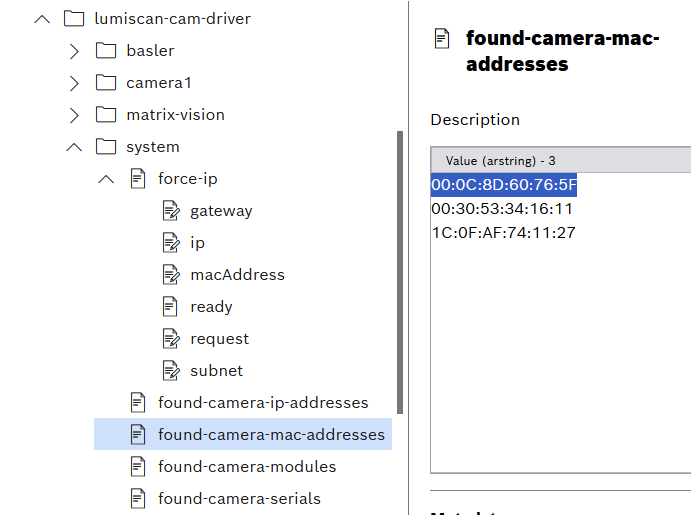
Copy the MAC address for corresponding camera.
i.e. GX030303 is first serial, so we copy first MAC address
-
Set the following parameters (all parameters are described in Table 4: Force IP Configuration):
-
gateway: 192.168.50.1
-
macAddress: 00:0C:8D:60:76:5F
-
ip: 192.168.50.2
-
subnet: 255.255.255.0
-
-
Once above parameters are set, follow the handshake convention to call force-ip
-
Wait until ready = true. This node is read-only and is set by the application.
-
Set request = true
-
Set request = false
-
Once ready is back to true, you should be able to see the value from node system/found-camera-ip-addresses has changed.
If not, then please refer to supplier‘s program to set camera IP.