Setup Camera Configuration
The Cam Driver is configured with two kinds of files:
-
lumiscan-cam-driver.jsoncontains the application settings. Here you can specify configuration files for the camera you want to use. -
<extra file name>(here as example: camera_example.json) contains the configuration of one camera. You can configure the camera-relevant parameters here.
On ctrlX OS you edit them in the ctrlX OS website, on a PC in a text editor.
Edit with Built-In Website (ctrlX OS)
-
Log in to the ctrlX OS website.
-
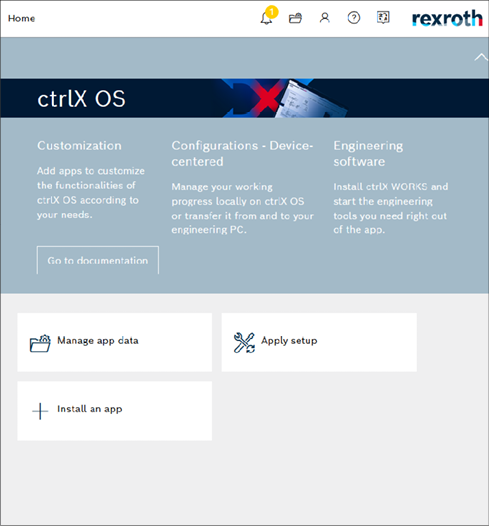
Go to Home.
-
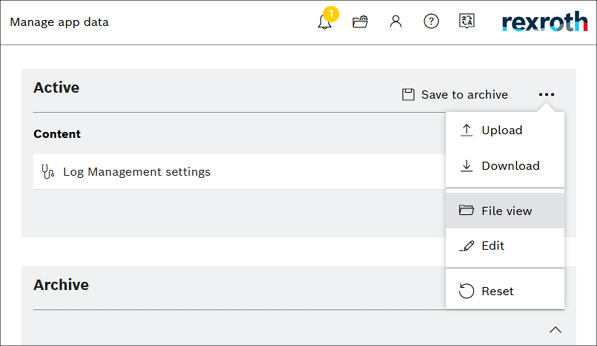
Select Manage app data.
-
Click the three dots and select File View.
See also Application Settings Content Example -
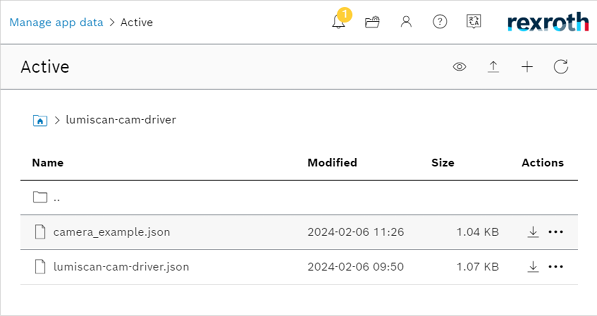
Go to the relevant application folder.
-
There are two files by default (You can add new files later).
-
lumiscan-cam-driver.jsoncontains application settings. Here you can specify configuration files for the camera you want to use. -
<extra file name>(here as example: camera_example.json) contains configuration for one camera. You can configure camera relevant parameter here.
-
-
Left-clicking on the desired filename will automatically open the JSON Settings window.
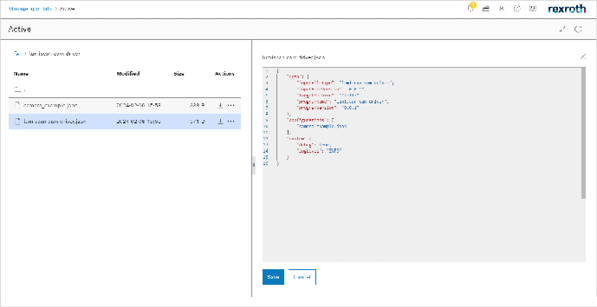
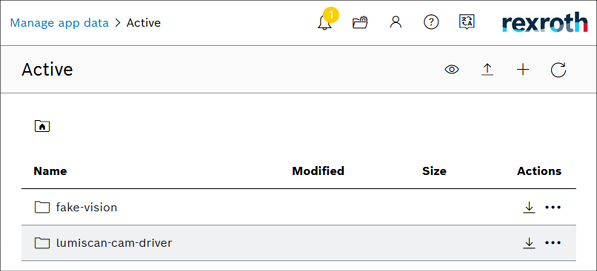
The settings of the LumiScan CamDriver application are located in the lumiscan-cam-driver.json, and it is here that you should configure the general settings of the camera.
An example of such settings is shown below.
The description of the parameters mentioned above can be found in the following Table 5: Application Settings File: JSON Settings Description.
Edit the Files on a PC
On a PC the settings are files in the folder the Cam Driver reads its settings from (see
Uploading Data). Open them in any text editor, preferably one
that checks JSON against the schemas in the schemas folder. Restart the Cam Driver after saving.
See also Application Settings Content Example.