Revision Notes
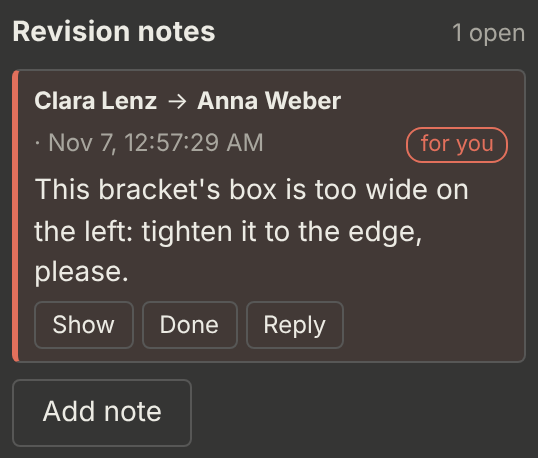
A revision note is an instruction on one image for someone else, typically from a reviewer to an annotator: what to change and why. For example: "This bracket’s box is too wide on the left: tighten it to the edge, please."
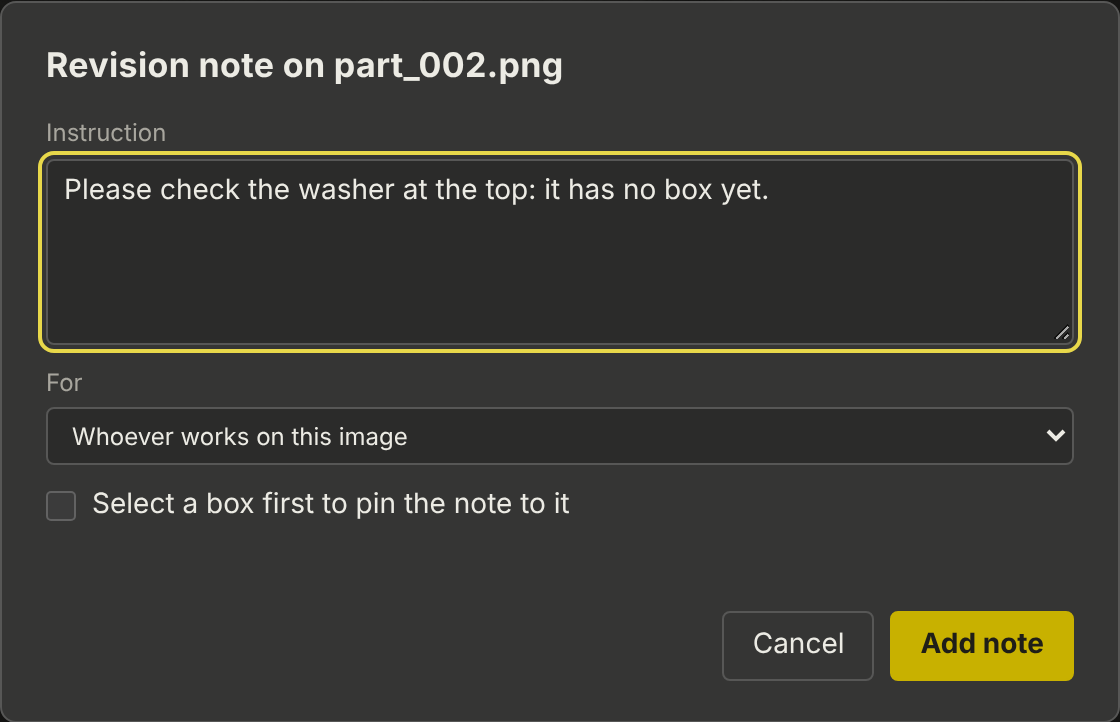
Leaving a note
-
Open the image. To pin the note to a box, select the box first.
-
Click Add note in the Revision notes panel.
-
Write the instruction.
-
Under For, choose the person, or Whoever works on this image.
-
Tick Pin the note to the selected box if you selected one. The note is then shown as a red ! on the image.
-
Click Add note.
Receiving notes
-
The top bar shows ✎ n notes for you. Click it to open the next image with a note for you.
-
The image list marks images with open notes (✎ and the number).
-
Only images with notes for me filters the list.
On the image, the note is shown in the Revision notes panel, with the author, the addressee and the time:
Show |
zooms to the spot the note is pinned to |
Reply |
answers the note |
Done |
marks the note as done, optionally with a reply. Done notes stay visible, with who closed them and when. |
The author and project admins can delete a note.