Exporting the Annotations
Export in the top bar downloads the annotated images, in one of three formats (Format):
-
LumiScan Training project (ZIP): a complete LumiScan Training project. Unpack it into the Training’s projects folder, open it there and start training.
-
COCO: images and annotations (ZIP) and COCO: annotations only (JSON): for other tools, see COCO.
Reviewers and project admins see the button. All three formats use the same images, classes and split.
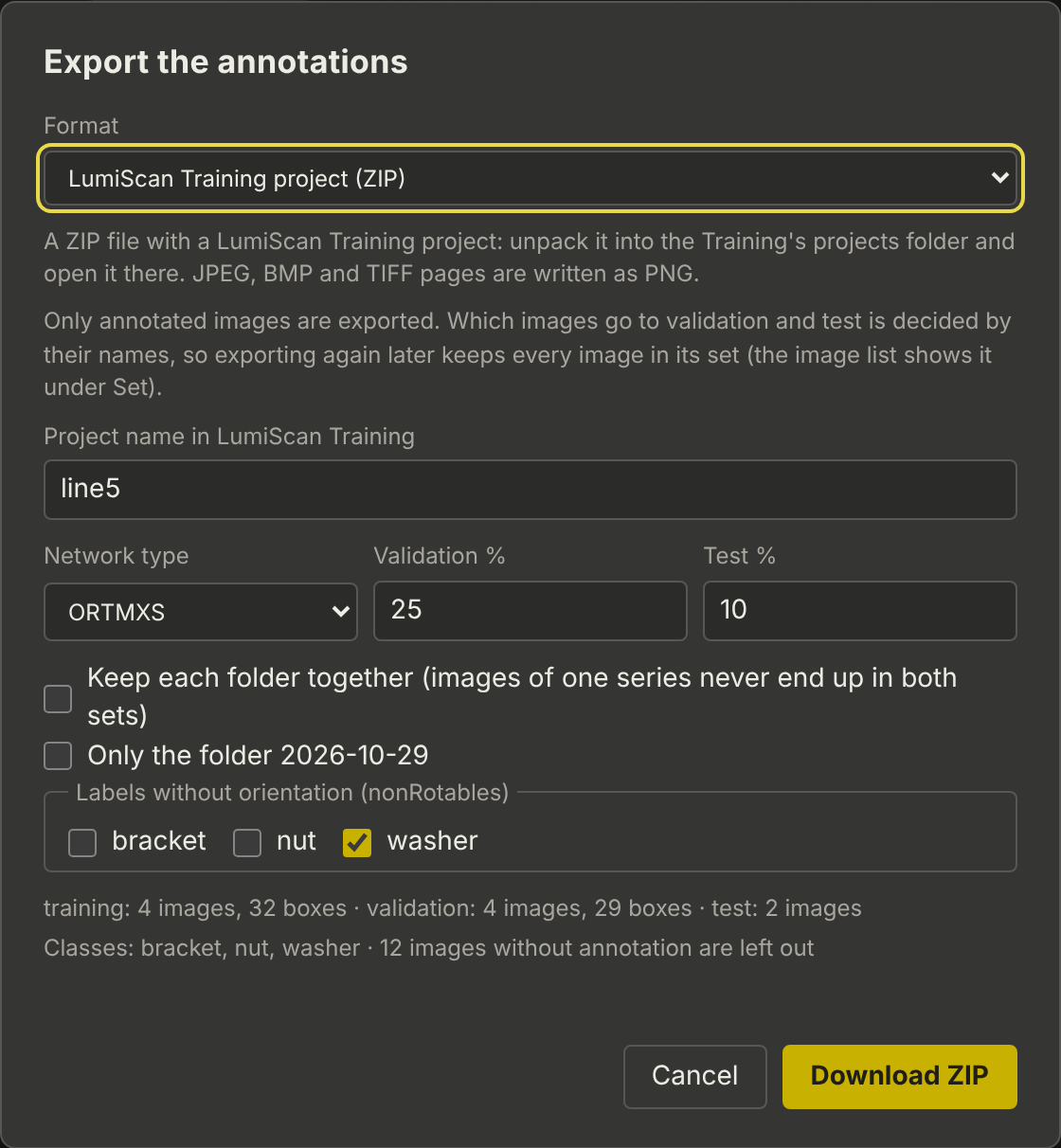
Settings
Format |
LumiScan Training project, COCO with images, or COCO annotations only (with the choice of all images or one set). |
Project name in LumiScan Training |
Name of the project folder and of its configuration file (for COCO: Name of the export). Default: the project name. |
Network type |
The network LumiScan Training trains, for example |
Validation % |
Share of the images the training does not learn from but measures its progress on. Default 20. |
Test % |
Share kept for the final test. Default 0: LumiScan Training then tests on the validation images. |
Keep each folder together |
All images of a folder go to the same set. Use it when the images of a folder are a series of nearly the same scene: otherwise almost identical images end up in training and validation, and the validation figures look better than the network is. |
Only the folder … |
Export only the open folder instead of all. |
Labels without orientation |
Labels whose objects have no front or back (for example round washers): |
Below the settings the dialog shows how many images and boxes go to each set, the classes, and how many images are left out because they have no annotation. Project admins' choices are kept as the project’s defaults for the next export.
What is exported
Line 5 – brackets.lumiscan-training.zip
  Line 5 – brackets/
    Line 5 – brackets.train.json        project configuration for LumiScan Training
    training/2026-10-28/part_001.png    image
    training/2026-10-28/part_001.csv    its annotation, unchanged
    ...
    validation/2026-10-29/...
    test/...                            only with a test share
lumiscan-annotation-export.json who exported when, the split, the counts-
Only images with an annotation are exported. With several annotators per image: the reference annotation (agreed or decided by a reviewer).
-
The annotation files are the same files the server stores (see Annotation Files).
-
JPEG and BMP images and the pages of TIFF files are written as PNG, because LumiScan Training reads
<name>.pngnext to each<name>.csv(see Image Formats). -
The classes are the project’s labels in their order. Boxes labelled
UNKNOWN, and boxes with a label that is not a class, are not learned; the info file counts them. -
The configuration names the folders relative to the project (
training,validation,test). LumiScan Training points them at the project folder when it opens the project.
The split stays the same
Which set an image belongs to is decided by its folder and file name, not by chance. Exporting the same project again, after more images were annotated, keeps every image in its set: an image the network learned from never becomes a validation image later, so the validation figures stay honest. Raising the validation share only moves images from training to validation. The image list shows each image’s set under Set.
COCO
COCO: images and annotations (ZIP) and COCO: annotations only (JSON) export the same images, classes and sets in the COCO object detection format (cocodataset.org), which CVAT, Label Studio, FiftyOne, Ultralytics, Detectron2 and many other tools read.
Line 5 – brackets.coco.zip
  Line 5 – brackets/
    images/2026-10-28/part_001.png
    ...
    annotations/instances_all.json      all images
    annotations/instances_train.json    with more than one set: one file per set
    annotations/instances_val.json
    annotations/instances_test.json
The JSON download is one such file, for all images or for one set (Images in the JSON file); its file_name entries name the images as in the ZIP.
| Field | Content |
|---|---|
|
|
|
The axis-aligned rectangle around the oriented box |
|
The four corners of the oriented box (top left, top right, bottom right, bottom left of the box), so tools draw it rotated |
|
Width × height of the oriented box |
|
The box as in the CSV: |
|
The box’s metadata, if it has any |
|
The classes in label order, |
PNG and JPEG files are exported as they are; BMP files and TIFF pages are written as PNG. Boxes labelled UNKNOWN are left out.