AI Agents (MCP)
From version 2.7 AI agents work in annotation projects through the Model Context Protocol (MCP): Claude Code, Claude Desktop, OpenAI Codex, Gemini CLI, VS Code with GitHub Copilot, LM Studio, Cursor, Open WebUI and other MCP clients, with a model in the cloud or a local one. An agent signs in with a user’s personal access token and acts as that user:
-
it never has more rights than the user, and only the scopes of its token,
-
it works only in projects that allow AI agents,
-
every box it saves is marked as an AI box until a person corrects it.
Typical uses: an agent pre-annotates a folder and a person checks its boxes; an agent compares the annotators of a folder or looks for images with a missing label; a project admin asks an agent how far a project is.
| An agent whose model runs in the cloud sends what it reads to that service: file names, boxes and, if the project allows it, the image content. Where images or annotations must not leave the company, use a local model, or set Agents may see to Only names, sizes and boxes, no pixels (see Allowing a project). |
Switching it on
AI agents are off by default. Add a section mcp to the configuration and restart the server:
"mcp": {"enabled": true},The server then answers at <public_url>/mcp (Streamable HTTP transport, JSON-RPC 2.0). Further keys, all optional:
Key in mcp |
Meaning |
|---|---|
|
|
|
Users may create access tokens. Default |
|
Browser origins allowed besides the server’s own address ( |
|
Tool calls per token and minute. Default 120. |
|
Longest side of the images sent to agents, in pixels. Default 2048. |
|
Largest piece of an image upload in one tool call, in MB. Default 16. For the uploads of a later version. |
|
Validity of new tokens in days: suggested 90, at most 365. |
On the single-PC installation /mcp only answers on the PC itself (127.0.0.1); agents need an access token there too.
Access tokens
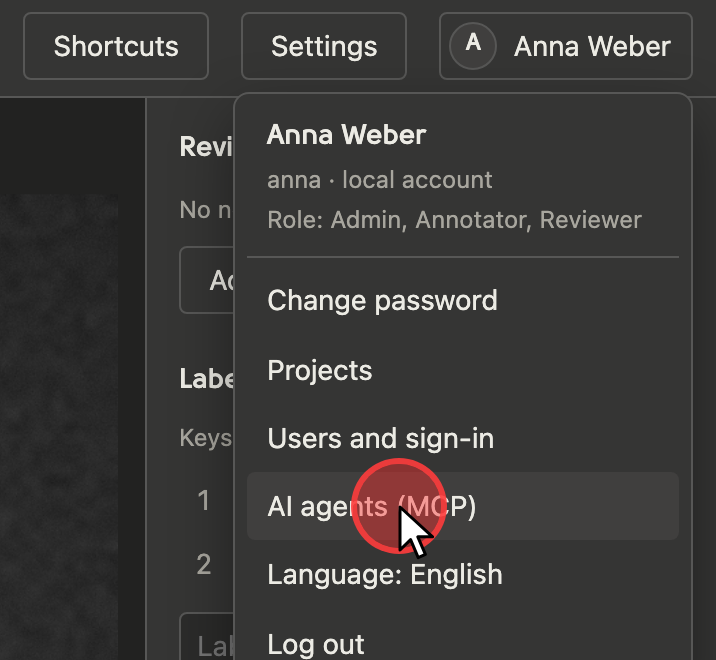
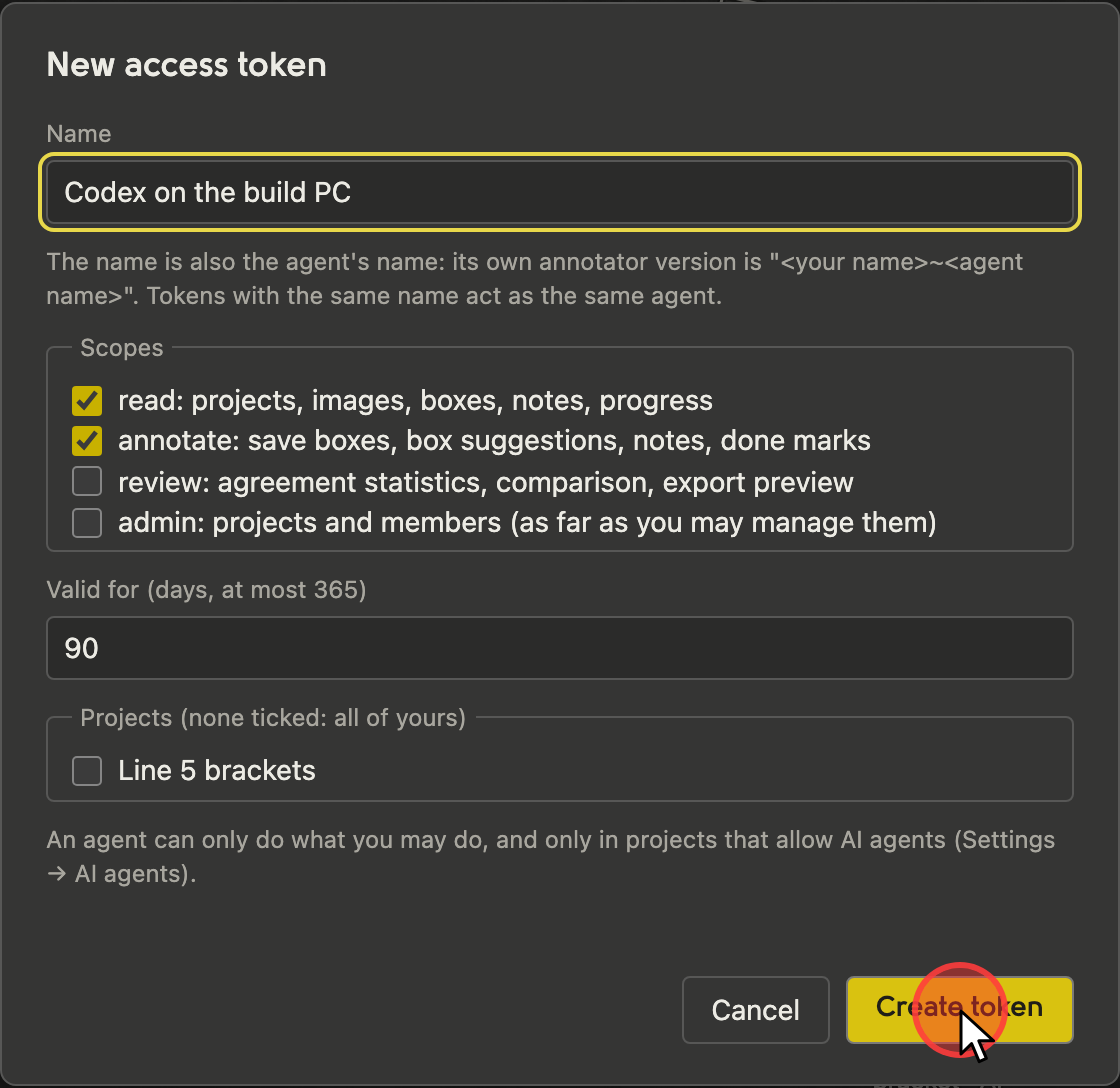
Every user creates the tokens for their agents under their name → AI agents (MCP) → New token:
Name |
For example "Claude Code on my laptop". The name is also the agent’s name: its own annotator version is |
Scopes |
What the agent may do, see the table below. read and annotate are ticked. |
Valid for |
Days, suggested 90, at most 365 ( |
Projects |
None ticked: all of your projects. Otherwise only the ticked ones. |
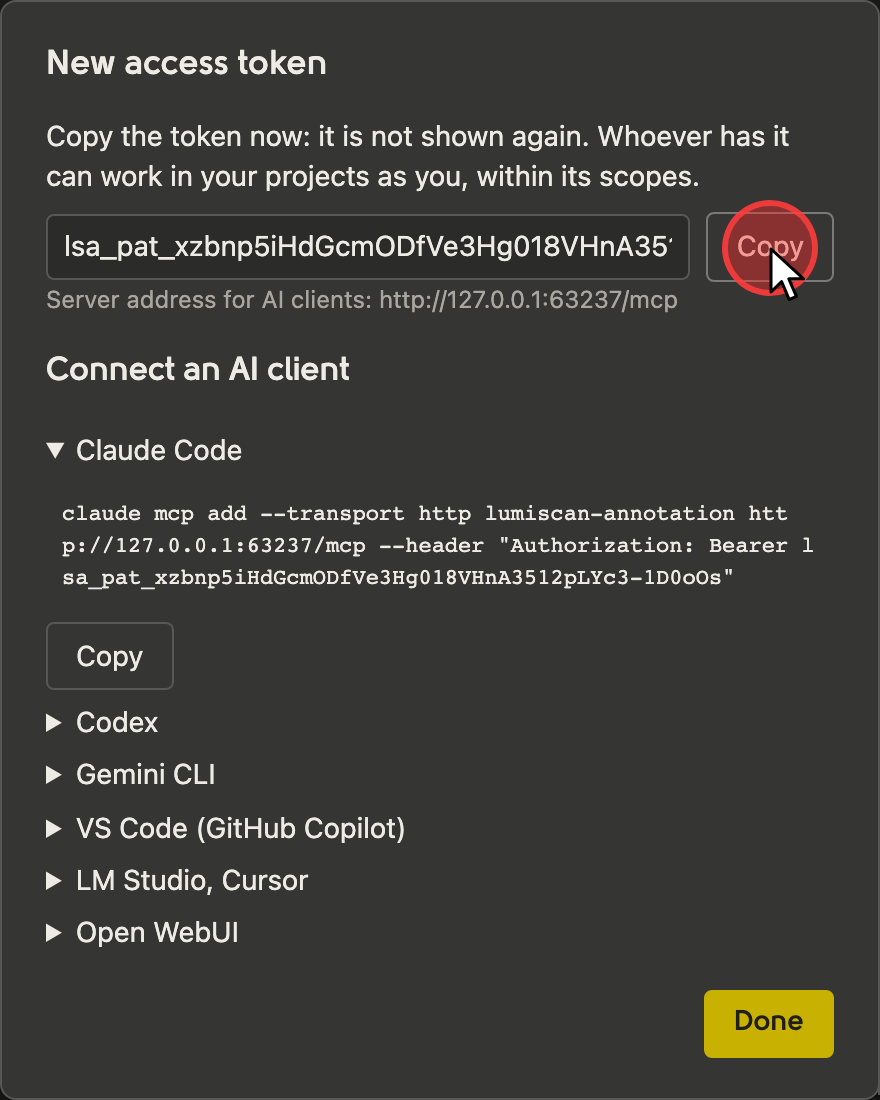
Create token shows the token (lsa_pat_…) once, with a button to copy it and ready configurations for the AI clients (Connecting an AI client). Copy it right away: the server keeps only a hash of it and cannot show it again. Whoever has the token can work in your projects as you, within its scopes.
| Scope | Allows |
|---|---|
read |
Projects, folders, images, boxes, history, revision notes, progress |
annotate |
Saving boxes, box suggestions, done marks, adding labels, revision notes, rating images with the network |
review |
Agreement statistics, comparing annotators, preview of the training export |
admin |
Reserved for tools for projects and members in a later version |
A tool needs its scope in the token and the user’s role in the project: saving boxes, for example, needs annotate and the annotator role.
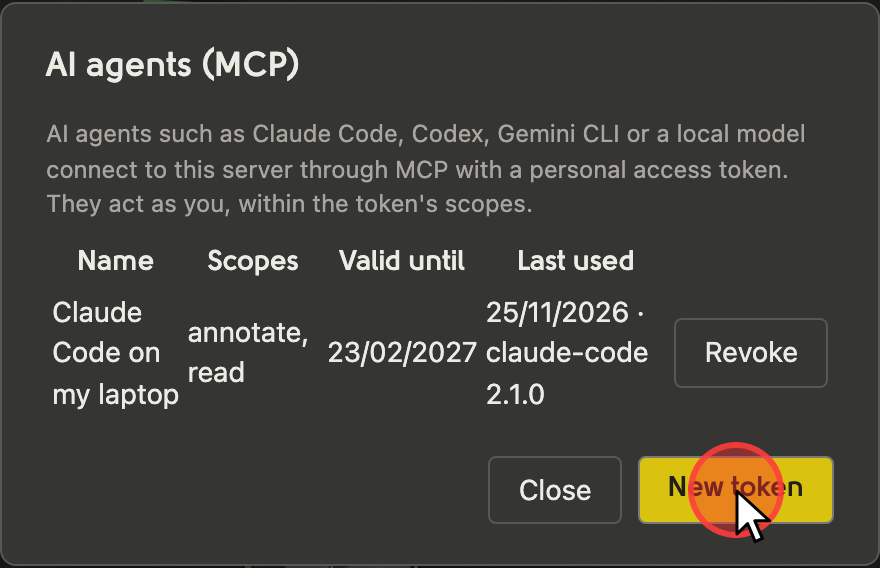
The list in AI agents (MCP) shows your tokens with their scopes, validity and when and by which client they were last used. Revoke ends a token at once. The tokens of a user are also revoked when the user is disabled or deleted, or when an admin resets the user’s password. With "access_tokens": false nobody can create new tokens.
Allowing a project
In the project settings, section AI agents (shown when AI agents are switched on), project admins decide what agents may do in the project:
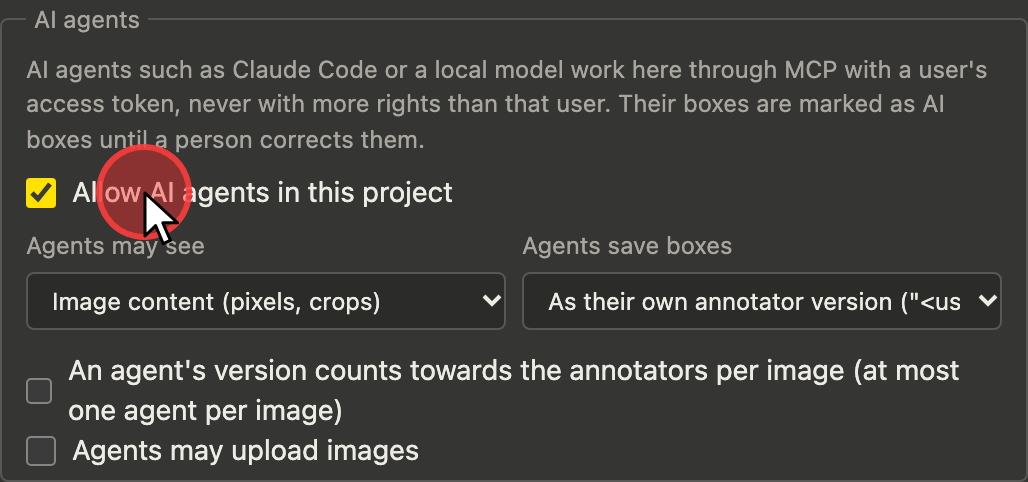
Allow AI agents in this project |
Off by default. Without it agents cannot work in the project. |
Agents may see |
Image content (pixels, crops), or Only names, sizes and boxes, no pixels: then |
Agents save boxes |
As their own annotator version ( |
An agent’s version counts towards the annotators per image |
See Agents as annotators. |
Agents may upload images |
Reserved for a later version. |
Connecting an AI client
An AI client needs the server address <public_url>/mcp and the header Authorization: Bearer <token>. After Create token the dialog shows the configuration for each client with your address and token filled in, for example:
- Claude Code
-
claude mcp add --transport http lumiscan-annotation https://annotation.example.com/mcp --header "Authorization: Bearer lsa_pat_..." - Codex
-
In
~/.codex/config.toml, with the token in the environment variableLUMISCAN_ANNOTATION_TOKEN:[mcp_servers.lumiscan_annotation] url = "https://annotation.example.com/mcp" bearer_token_env_var = "LUMISCAN_ANNOTATION_TOKEN" - Gemini CLI, VS Code (GitHub Copilot), LM Studio, Cursor
-
A JSON entry
lumiscan-annotationwith the address and the header, in the form the client expects; the dialog shows each one. - Open WebUI
-
Admin settings → External tools → +: type MCP (Streamable HTTP), the address, authentication Bearer with the token.
Then talk to the agent, for example: "List my annotation projects", or "Annotate the images of folder 2026-11-20 in project line-5 that have no boxes yet: take the box suggestions, check each box in the image and save".
What agents can do
An agent sees only the tools of its token’s scopes. Every tool call goes through the same checks as the web app: roles, edit locks, the check for changes saved meanwhile, several annotators per image. The annotation files it writes are the same as those of the web app.
| Tool | Scope | What it does |
|---|---|---|
|
read |
The projects the user takes part in, with the user’s roles and whether AI agents are allowed there |
|
read |
Labels, region of interest, several annotators per image, box suggestion and AI agent settings |
|
read |
The folders of a project |
|
read |
The images of a folder with their state (annotated, boxes, labels, done, open notes, AI boxes), with filters |
|
read |
How far a project is, per folder and in total |
|
read |
The boxes of an image: the reference or, with several annotators, the agent’s own version |
|
read |
The image scaled to |
|
read |
The saved versions of an image’s boxes |
|
read |
The revision notes of an image, or the open notes of the project |
|
read |
How far the network’s rating of a folder is |
|
read |
The smallest oriented box around a set of points, in the box convention of the project |
|
annotate |
Save the boxes of an image, as the project’s Agents save boxes setting says |
|
annotate |
Box suggestions for an image from the project’s networks |
|
annotate |
Mark an image as done, or remove the mark |
|
annotate |
Add a label to the project’s list |
|
annotate |
Leave a revision note on an image, optionally at a point |
|
annotate |
Reply to a revision note or mark it done |
|
annotate |
Let the network rate a folder’s images, so the most uncertain ones come first |
|
review |
Agreement between the annotators of a folder or project |
|
review |
All annotators' boxes of one image, matched, with the differences |
|
review |
What an export for LumiScan Training would contain |
Boxes are given as centre, width, height and angle in radians, clockwise, the same convention as the annotation files (see Box Orientation).
AI boxes
The server marks every box an agent saves, in the box’s metadata:
"origin": {"type": "ai", "agent": "Claude Code on my laptop", "client": "claude-code", "user": "anna", "at": 1795620000000}When a person later moves, resizes, turns or relabels the box, the type becomes ai-corrected, with correctedBy and correctedAt. The server sets these marks on every save, so a client can neither forge nor lose them; they go into the CSV and JSON files and into the COCO export.
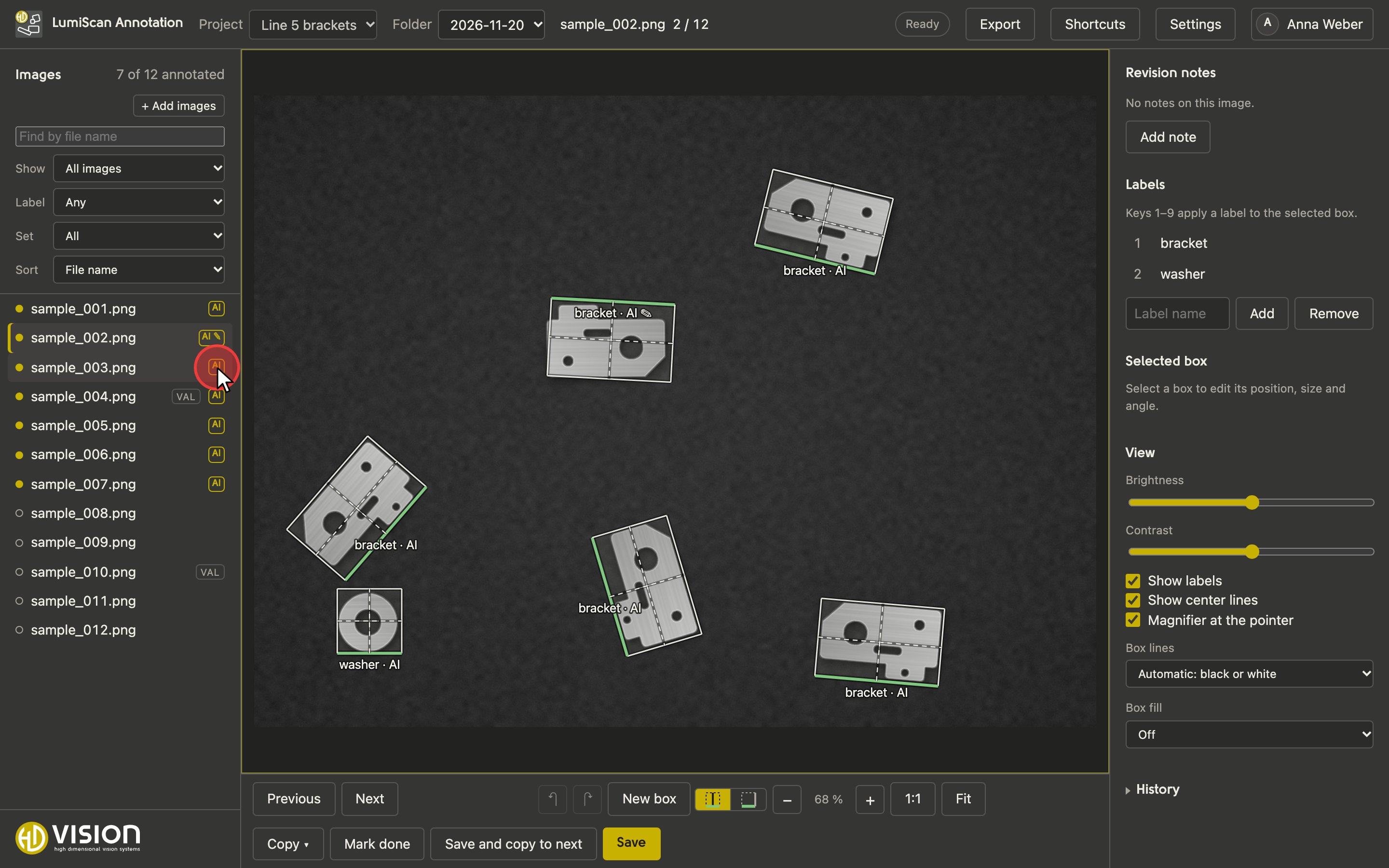
In the web app:
-
the viewer labels such boxes AI, and AI ✎ once a person has corrected them,
-
the image list shows an AI badge on images with AI boxes; hovering over it says how many there are and how many a person has corrected,
-
Show offers With boxes from AI agents and AI boxes corrected by a person,
-
the history names the user, the agent and its client.
Agents as annotators
With Agents save boxes: As their own annotator version an agent saves its own version, kept as <user>~<agent> like the versions of the people (Several Annotators per Image). Several agents of one user, and a person and their agents, therefore never overwrite each other. A service account for agents is simply a user of its own.
-
With An agent’s version counts towards the annotators per image, an agent’s version counts like a person’s (at most one agent per image), so for example one person and one agent can reach the consensus of a project with two annotators per image.
-
Without it, the agent’s version is an extra vote: the comparison shows it, but the image still needs the set number of people.
Directly into the reference is refused in projects with several annotators per image.
Security and limits
-
Tokens are stored only as a hash and shown only once. They work only for
/mcp, not for the REST API. -
Five invalid tokens from one address block that address for 15 minutes.
-
rate_limit_per_minutelimits the tool calls per token. -
Browser requests from foreign origins are refused unless listed in
allowed_origins. -
Sessions end after 24 hours without use. The server speaks the MCP protocol versions 2025-11-25, 2025-06-18 and 2025-03-26.
-
The log names the MCP client of every tool call; the save history names the user and the agent.