History and Undo
Undo and redo
While you edit an image, every box change is a step: Ctrl+Z undoes it, Ctrl+Shift+Z or Ctrl+Y redoes it, as do the buttons ↶ and ↷ in the toolbar. Holding an arrow key is one step.
History
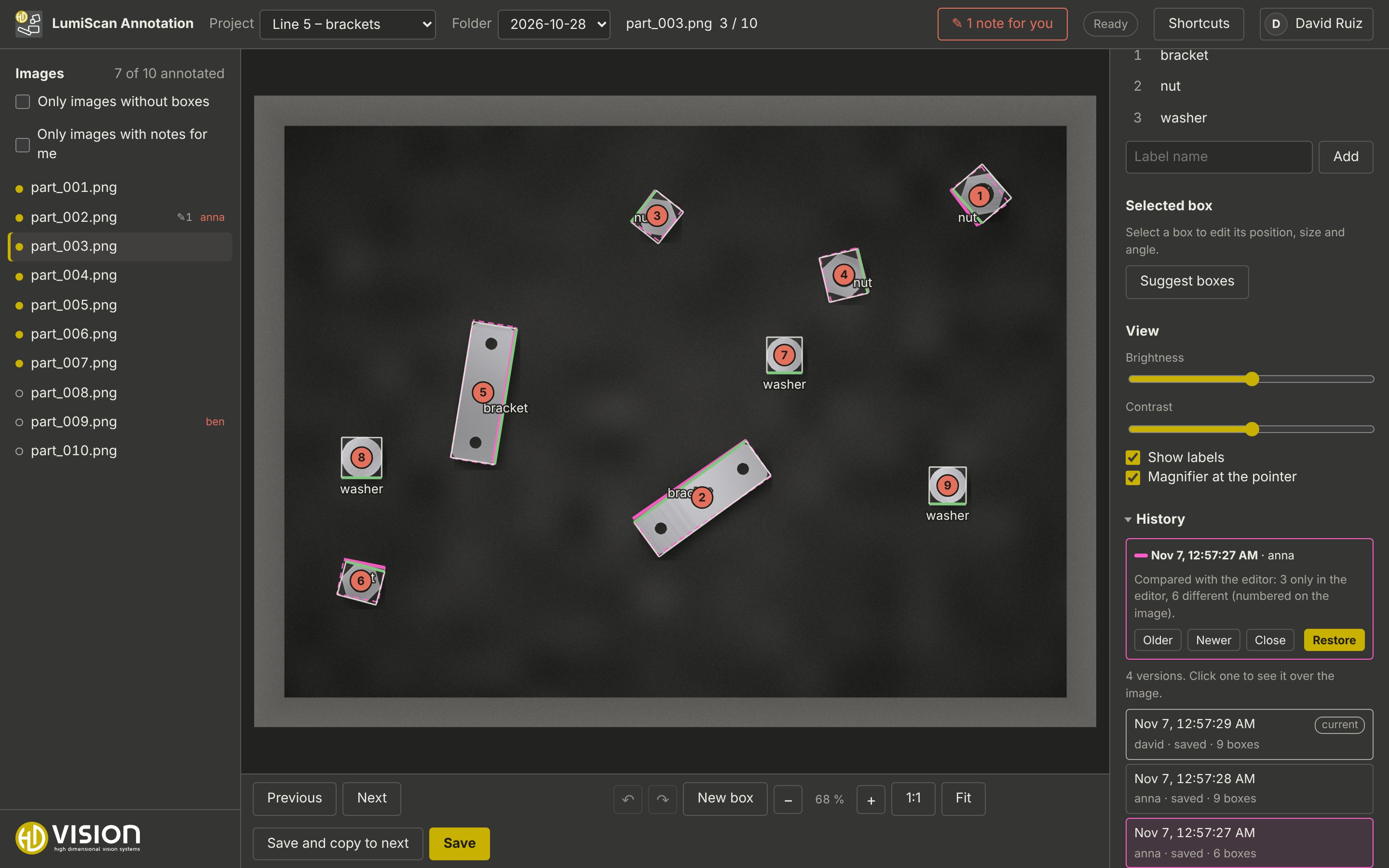
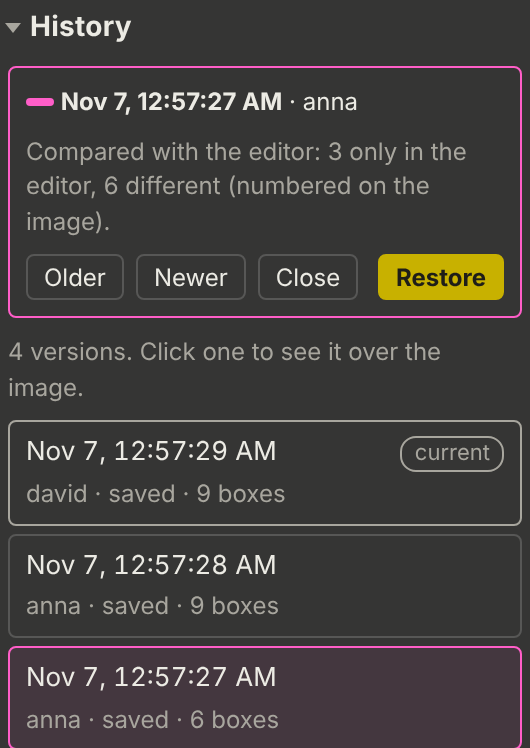
The History panel (on the right, at the bottom, click to open) lists every saved state of the open image, also from earlier days, with the time, the user and what happened: saved, decided in review, annotators agreed, restored, or changed outside the web app.
-
Click a version to see it in pink over the image. Numbered markers show where it differs from the boxes in the editor.
-
Older and Newer (or the keys , and .) step through the versions; Close hides it again.
-
Restore puts the version into the editor as unsaved changes. Saving adds a new version; the history is never rewritten.
Changes made with the desktop tool on the same folder are kept as versions too, with the user from <image>.json. The history keeps the exact text of each CSV file, so restoring writes an earlier state back byte for byte.
With several annotators per image, annotators see the history of their own version only. Reviewers choose under Show whether they see the reference or one annotator’s history.