Troubleshooting
This page describes problems with the LumiScan X and the LumiScan software, grouped by category. Start with the General checks: they rule out the most frequent causes. Then find your symptom or the exact message in the category list and follow the steps of that entry.
General checks
Carry out these checks first. Each of them is a precondition for stable operation of the LumiScan X.
-
Check the power supply - expected: 24 V nominal voltage, applied constantly and without fluctuations (fluctuations can lead to malfunctions of the LumiScan X), or Power over Ethernet (IEEE 802.3af). If you use a PELV supply instead of a SELV supply, all grounding conductors must be connected to a common star grounding point; otherwise unwanted leakage or compensating currents and sensor malfunctions may occur. See Power Supply.
-
Wait after switching on - expected: the camera starts as soon as the power supply is connected and is ready to use in about 30 seconds.
-
Check the temperature at the installation site - expected: within the operating temperature of 0 - 55 °C, and the system has reached the optimum temperature before you measure (see Temperature range). Material components attract dust, which can cause the hardware to overheat: check regularly for excessive dust accumulation.
-
Check the computer against the Hardware Requirements and Software Requirements - expected: at least an Intel i5 2.4 GHz, 8 GB RAM, an NVIDIA GTX 1650 and an Intel Ethernet Adapter I210 (or better).
-
Check the settings of the Ethernet port to which the LumiScan X is connected (Networking tab > Configure > Advanced tab) - expected: jumbo frames Maximum (9014 bytes), Receive Buffers 2048, Transmit Buffers 2048. If these settings are not possible, update the driver. See Network Settings.
-
Check the inbound rules of the Windows Firewall - expected: the LumiScan software is listed, either once for TCP/UDP together or in two entries (Windows creates two rules by default). See Windows Firewall.
-
Check the anti-virus software - expected: a fixed network adapter is assigned to the LumiScan X and Deep Packet Inspection is deactivated for this adapter. See Virus Protection.
-
Check how the computer is used while the camera is running - expected: no remote desktop connection and no metered connection; both have a significant impact on camera performance. See Metered Connection and Remote Desktop.
-
In the LumiScan Viewer, open Menu → IP Configuration, click Refresh, select the camera and click Check Status - expected: the status display confirms that communication between camera and computer was successful and that both are in the same subnet. Camera and computer must not have the same IP address. A Static IP is strongly recommended instead of DHCP. See Camera IP Configuration.
-
Open Menu → Show log - the log window provides additional information about the processes in the program. See User Interface.
Connection and network
Problem: The LumiScan software does not find the camera after the first start
After the LumiScan software was started for the first time, it does not find the camera. The software informs you with a message.
-
At the first start, network access for the LumiScan software was denied in the Windows Defender prompt.
-
The Windows Defender prompt did not appear at the first start.
-
Check the inbound rules of the Windows Firewall - expected: the LumiScan software is listed (by default in two rules created by Windows, see Two rules created by Windows Firewall).
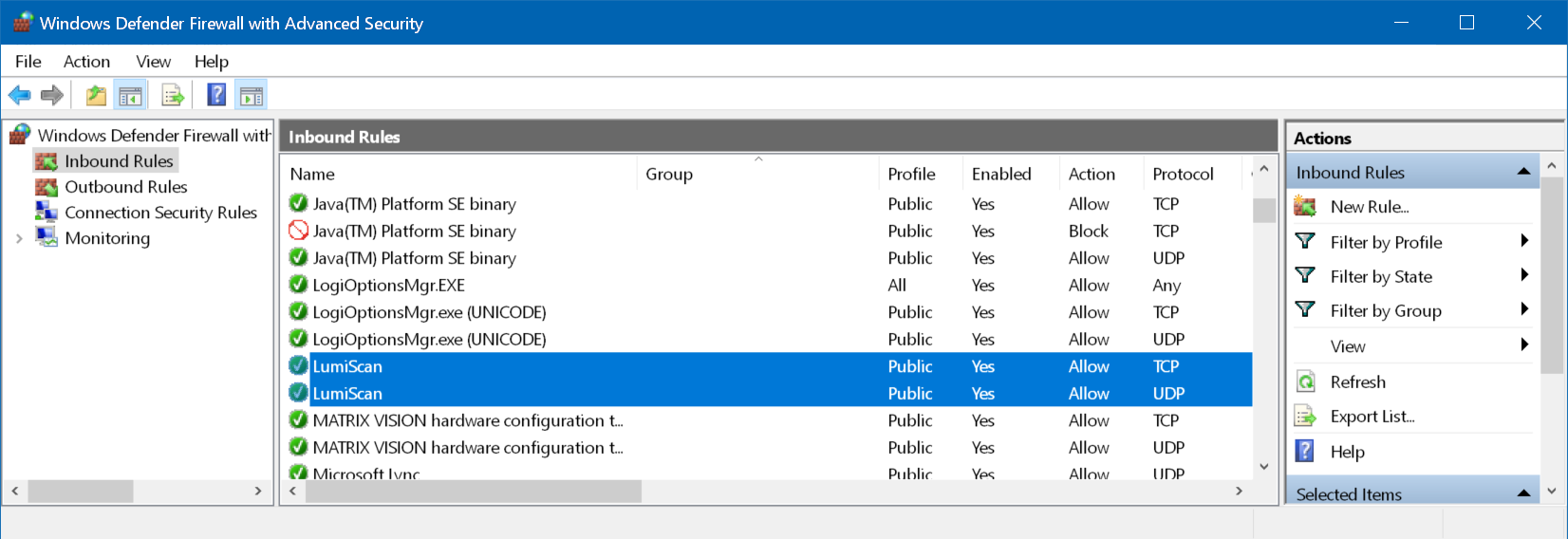
-
If access was denied: restart the LumiScan software so that Windows asks for permission again, and confirm the access permission for the LumiScan software.
-
If the prompt did not appear, or the automatic Windows prompt fails: allow the app manually in the Windows Defender Firewall settings:
-
Go to Start → Settings → Privacy & security → Windows Security → Open Windows Security.
-
In the left menu bar, click Firewall and Network Protection.
-
Click Allow application access through firewall. A window opens with the advanced settings for the application permissions.
-
Click Change settings → Allow other app.
-
Select the
LumiScanViewerfile in thebinsubfolder of the installation directory. No further changes are required. -
Click Add, then Done. The new rule is activated.
-
Continue with Problem: Device not found..
Send the information listed under Information for support to support, together with the message of the software and a screenshot of the inbound rules of the Windows Firewall.
Problem: Device not found.
The LumiScan software shows the message Device not found.
-
A hardware start error.
-
A network configuration error.
-
The camera is blocked by the Windows Firewall or the virus protection.
-
A firmware error: the LumiScan X is not found even after repeated restarts, and its current is approx. 80 mA instead of the usual 160-250 mA.
-
Check the power supply and the cables of the camera - expected: the camera is powered (24 V via the sensor/actuator cable or PoE) and the Ethernet cable is connected to the Ethernet port of the computer. See Connecting the Camera System.
-
Wait about 30 seconds after switching on - expected: the camera has started.
-
Check the IP address of the computer: in Menu → IP Configuration, section Computer Network Information - expected: the NIC is the network adapter to which the camera is connected, and its IP and subnet mask are in the same subnet as the camera.
-
Click Refresh - expected: the camera appears in the Camera Selection Dropdown.
-
Check the Windows Firewall inbound rules and the virus protection as described in the General checks - expected: the LumiScan software is allowed and the adapter is not subject to Deep Packet Inspection.
-
If the camera is still not found after repeated restarts, check the current of the camera - expected: 160-250 mA. A current of approx. 80 mA indicates a firmware error.
-
If a hardware start error occurred: unplug the camera, wait 10 seconds and reconnect it. Wait about 30 seconds until the camera is ready.
-
If the network configuration is wrong: set the IP address of the computer and of the camera so that both are in the same subnet but do not have the same IP address (example: PC 192.168.71.5, camera 192.168.71.6, subnet mask usually 255.255.255.0). Use Static IP for the camera. See Configuration Steps.
-
If the camera is blocked by the firewall or the virus protection: allow the LumiScan software as described in Problem: The LumiScan software does not find the camera after the first start and deactivate Deep Packet Inspection for the adapter of the LumiScan X (see Virus Protection).
-
If a firmware error occurred (approx. 80 mA): the LumiScan X must be sent to HD Vision Systems for repair. Contact customer support.
Send the information listed under Information for support to support, together with the serial number of the camera, the IP addresses of the computer and the camera, and the current you measured.
Problem: Access denied.
The LumiScan software shows the message Access denied.
-
Another software uses the camera.
-
The previous program was not terminated normally.
-
Check whether another program that uses the LumiScan X is open on the computer - expected: no other program uses the camera.
-
If another software uses the camera: close the other program that uses the LumiScan X.
-
If no other program uses the camera (previous program not terminated normally): turn the LumiScan X off and turn it on again after 15 seconds.
Send the information listed under Information for support to support, together with the names of the other programs that were running on the computer.
Problem: Incomplete Frames
The LumiScan software shows the message Incomplete Frames.
-
Incorrect network settings of the computer.
-
Open the settings of the Ethernet port to which the LumiScan X is connected: Change adapter options > Ethernet port > Networking tab > Configure > Advanced tab - expected: jumbo frames are set to Maximum (9014 bytes), Receive Buffers and Transmit Buffers to 2048.
-
If the network settings are incorrect:
-
Select Maximum (9014 bytes) for jumbo frames.
-
Set Receive Buffers to 2048 and Transmit Buffers to 2048.
-
If these settings are not possible, update the driver.
See Network Settings.
-
Send the information listed under Information for support to support, together with the name and driver version of the network adapter and a screenshot of its Advanced tab.
Image acquisition
Problem: Acquisition timeout.
The LumiScan software shows the message Acquisition timeout.
-
Incorrect settings: the exposure time is longer than the timeout.
-
Incorrect settings: with a hardware trigger, the trigger signal does not reach the LumiScan X.
-
An incorrect network connection or network configuration.
-
Check Exposure Time [μs] on the Basic tab of the camera settings - expected: the exposure time is not longer than the timeout.
-
If Trigger is set to Hardware Trigger, check the wiring of the IO-Link & Power connector - expected: the trigger signal is connected to pin 4 (black, Trigger IN) and pin 2 (white, Trigger GND). See Pin Assignment IO-Link & Power.
-
Check the trigger signal - expected: high level at least 5 V (optimum 24 V); the minimum signal length depends on the internal resistance of the source (up to 5 milliseconds). See Trigger In Signal.
-
Check the network settings, the Windows Firewall and the virus protection as described in the General checks.
-
If the exposure time is longer than the timeout: reduce Exposure Time [μs]. See Camera Settings.
-
If the hardware trigger signal does not reach the camera: correct the wiring or the trigger signal so that the requirements above are met.
-
If the network configuration is incorrect: check and optimize the network configuration (see Virus Protection and Windows Firewall).
-
If nothing helps: contact HD Vision Systems to check the timeout threshold and increase it if necessary.
Send the information listed under Information for support to support, together with the exposure time, the Trigger mode and, with a hardware trigger, a description of the trigger source and signal.
Problem: A timeout message appears and only a black image is displayed during recording
A timeout message appears. Only a black image is displayed during recording, although the connected sensor is recognized and appears in the drop-down menu.
-
The firewall is configured incorrectly: the camera is recognized, but its data is blocked.
-
The virus protection blocks the camera.
-
Check the inbound rules of the Windows Firewall - expected: the LumiScan software is listed (see Windows Firewall).
-
Check the anti-virus software - expected: Deep Packet Inspection is deactivated for the network adapter of the LumiScan X.
-
If the firewall blocks the camera: allow the LumiScan software in the Windows Defender Firewall as described in Problem: The LumiScan software does not find the camera after the first start.
-
If the virus protection blocks the camera: assign a fixed network adapter to the LumiScan X and deactivate Deep Packet Inspection for this adapter (see Virus Protection).
Send the information listed under Information for support to support, together with the exact timeout message and a screenshot of the inbound rules of the Windows Firewall.
Problem: Frames are missing when using the hardware trigger
With Trigger set to Hardware Trigger, not every trigger signal results in an image (missing frame).
-
The hardware trigger is faster than the image acquisition.
-
Compare the interval between two hardware trigger signals with the minimum image capture time - expected: the trigger interval is greater. For orientation: with the pixel format Mono8 the sensor captures 6 frames per second, with Mono12 the frame rate is limited to 3 frames per second (see Camera Settings).
-
If the hardware trigger is faster than the image acquisition: set the hardware trigger interval greater than the minimum image capture time.
Send the information listed under Information for support to support, together with the trigger interval, the pixel format, the exposure time and the Trigger Delay [μs].
Problem: No image is displayed in the LumiScan Viewer when using the software trigger
Trigger is set to Software Trigger, and no image is displayed in the LumiScan Viewer.
-
No software trigger is sent to the camera.
-
The button with the photo icon is not enabled, because no valid path is selected in Export Folder under Capture.
-
Check the button with the photo icon in the acquisition control panel - expected: the button is enabled.
-
Check Export Folder under Capture in the settings panel - expected: a valid path is selected.
-
If no software trigger was sent: click the button with the photo icon. It sends a software trigger that captures exactly one image.
-
If the button is not enabled: select a valid path in Export Folder under Capture (see Data Export).
Send the information listed under Information for support to support, together with the export folder path you selected.
Problem: The LumiScan Viewer shows noisy, incorrect images
The images in the LumiScan Viewer are noisy or incorrect.
-
The camera is not configured correctly.
-
Check the camera settings on the Basic and Advanced tabs (Pixel Format, Exposure Time [μs], Enable Autoexposure, Target Intensity) - expected: they are set for the current measurement object. The measurement parameters must be set individually for each measurement object.
-
Enable Show Overexposure on the Advanced tab - pixels whose intensity exceeds the Overexposure Limit are displayed in red.
-
If the camera is not configured correctly:
-
Stop recording.
-
Check and correct the camera configuration (see Camera Settings Configuration).
-
Restart recording.
-
Send the information listed under Information for support to support, together with a parameter file saved with Menu → Save Parameters and a screenshot of the image.
Point cloud
Problem: No point cloud is displayed
The Point Cloud tab shows no point cloud of the measurement object.
-
Incorrect settings:
-
The serial number in the calibration file name does not match the connected LumiScan X.
-
The minimum and maximum depth (Depth Range) do not include the measurement object.
-
The images are too bright or too dark.
-
The Confidence Threshold is too high, or the pre-/postprocessing filters are unsuitable.
-
-
Compare the serial number in the name of the calibration file (
.hdvcal) entered in the *Calibration section with the serial number on the back of the camera housing (for example LX20230101) - expected: they match. Help → Show Calibration shows information about the currently loaded calibration. -
Check Depth Range - expected: the minimum and maximum depth in millimeters include the actual position of the measurement object.
-
On the Frame tab, check the images - expected: not too bright and not too dark. Show Overexposure on the Advanced tab highlights overexposed pixels in red.
-
Check Basic Processing (Confidence Threshold, Preprocessing, Postprocessing Filter) and the Box Filter - expected: the confidence threshold does not filter out the measurement object, and the box of the Box Filter contains the measurement object (the filter removes all points outside the box).
-
If the calibration file does not match: enter the calibration file whose name contains the serial number of the connected LumiScan X. By default, the calibration files are stored in
C:\ProgramData\HD Vision Systems GmbH\calibration. See Calibration. -
If the depth range is wrong: set the minimum and maximum depth to the actual position of the measurement object. See Depth Range.
-
If the images are too bright or too dark: adjust Exposure Time [μs], or Target Intensity with Enable Autoexposure. See Camera Settings.
-
If the confidence threshold or the filters are unsuitable: reduce the Confidence Threshold and change the pre-/postprocessing filters. See Processing.
Send the information listed under Information for support to support, together with the name of the calibration file, the output of Help → Show Calibration, a parameter file saved with Menu → Save Parameters and, if possible, an exported capture.
Problem: The point cloud is poor
A point cloud is displayed, but its quality is poor.
-
Incorrect calibration.
-
Incorrect settings.
-
A dirty front cover (front glass).
-
The calibration file does not match the current measurement distance.
-
The camera sensor is not focused.
-
Carry out the diagnostic procedure of Problem: No point cloud is displayed.
-
Check the front glass - expected: no contamination.
-
Compare the distance between camera and measurement object with the standard calibration range and the in-focus range of your camera configuration - expected: the distance is within both ranges. See Standard Configurations.
-
Enable Enable Capture Statistics under Capture - the Capture Statistic shows the Valid Points and the Valid Ratio, which let you compare captures before and after a change.
-
If the calibration or the settings are incorrect: follow the resolution of Problem: No point cloud is displayed.
-
If the front glass is dirty: disconnect the power and clean the front glass as described in Cleaning the Coated Front Glass. Do not use microfiber cloths, solvents or alcohol-based cleaners.
-
If the calibration file does not match the measurement distance, the camera sensor is not focused, or nothing helps: the camera must be sent back to HD Vision Systems for recalibration. Contact customer support.
Send the information listed under Information for support to support, together with the serial number of the camera, the measurement distance, the name of the calibration file and, if possible, an exported point cloud (.ply or .pcd).
Licensing and software update
Problem: Not enough license.
The LumiScan software shows the message Not enough license.
-
The licence is insufficient.
-
The licence is used by another program.
-
The licence has not yet been released after the previous program was terminated.
-
Check whether another LumiScan program is open on this computer, also by another user - expected: none.
-
Open CodeMeter Control Center, License tab - expected: the LumiScan Key is listed as CmStick/C with a serial number of the form
3-1234567. See Recognising the key.
-
If the licence is used by another program: close all other LumiScan programs, also those opened by other users.
-
If the previous program was just terminated: try again in 5 to 10 seconds.
-
If the LumiScan Key is not listed: follow Key not detected.
-
If the licence is insufficient: one LumiScan Key is needed for each device on which the software runs at the same time (see One key per device). If you permanently need more licences, create a licence request as described in Requesting a Licence Update.
Send the information listed under Information for support to licenses@hdvisionsystems.com, together with the serial number of your LumiScan Key. See also Licensing troubleshooting.
Problem: An error occurs while installing a software update
An error occurs while you install a software update of the LumiScan software.
-
No specific cause is documented. The resolution below applies to every error during the update.
-
Note the exact error message of the installation dialog.
-
If an error occurs during the update: uninstall the LumiScan software and install it again (see Installation and Software Update).
Send the information listed under Information for support to support, together with the file name of the installer and the exact error message.
Information for support
If a problem persists, send the following information to customer support:
-
Software version: the installed LumiScan version, shown under Help → About.
-
Operating system: the operating system of the computer and the NVIDIA driver version (the supported versions are listed under Software Requirements).
-
Camera: the serial number of the LumiScan X (on the back of the camera housing, for example LX20230101).
-
Log: the content of the log window (Menu → Show log).
-
Error: the exact error message, a screenshot and the time the error occurred.
-
Communication status: the network configuration from Menu → IP Configuration (Computer Network Information, the IP and subnet mask of the camera, DHCP or Static IP) and the result of Check Status.
-
Configuration files: a parameter file saved with Menu → Save Parameters (
.jsonor.ini), the name of the calibration file (.hdvcal) and the output of Help → Show Calibration. -
Licensing: the serial number of the LumiScan Key, if the problem concerns licensing.
Customer Support: +49 6221 6721905
E-mail: customer.success@hdvisionsystems.com
Licence requests and licensing questions: licenses@hdvisionsystems.com