Admin and Debug Modes
LumiScan VGR provides additional modes for configuration, testing, maintenance, and diagnostics. These modes can be activated using the keyboard shortcuts shown in Table 3.
| Keyboard shortcut | Effect |
|---|---|
Ctrl + Shift + A |
Switches to admin mode. |
Ctrl + Shift + D |
Switches to debug mode. |
Ctrl + Shift + V |
Displays the current build version. |
Admin Mode
Admin mode is intended for configuration, testing, and maintenance.
Press Ctrl + Shift + A to activate or deactivate admin mode.
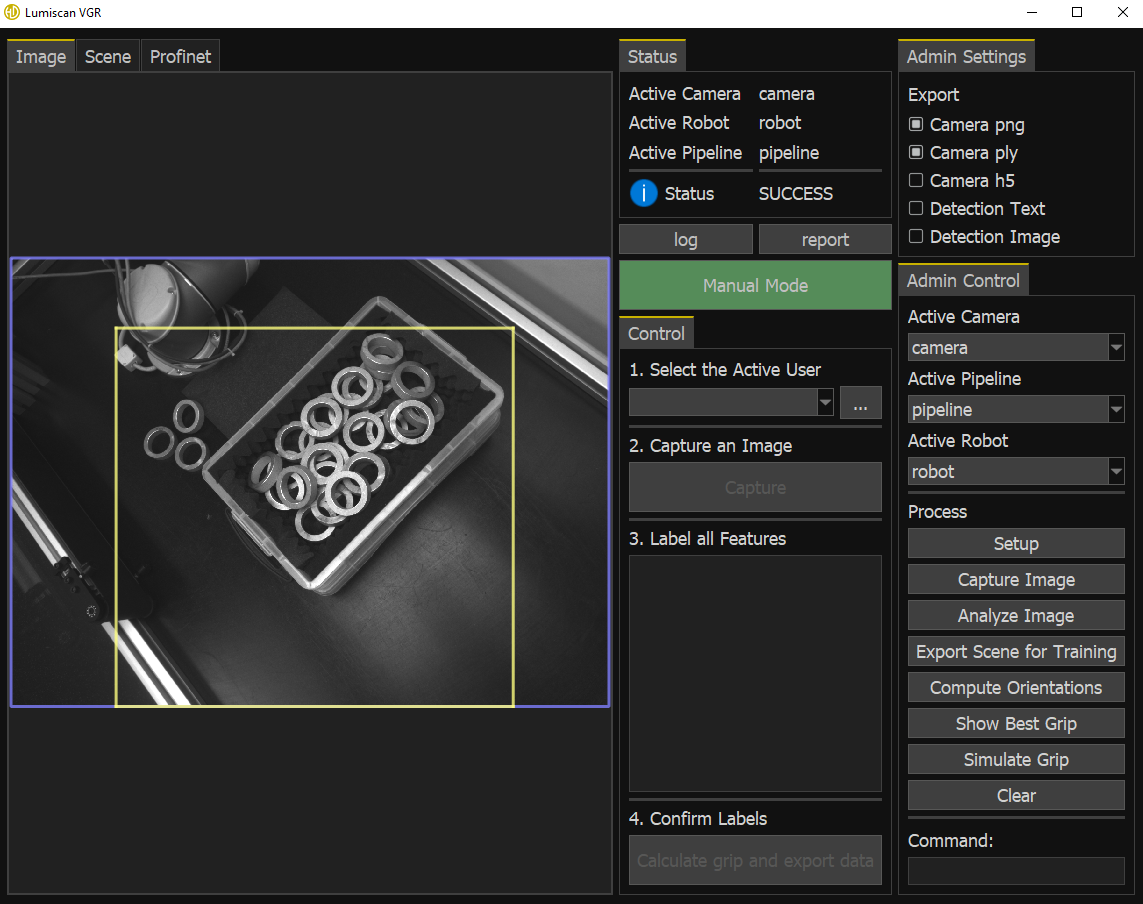
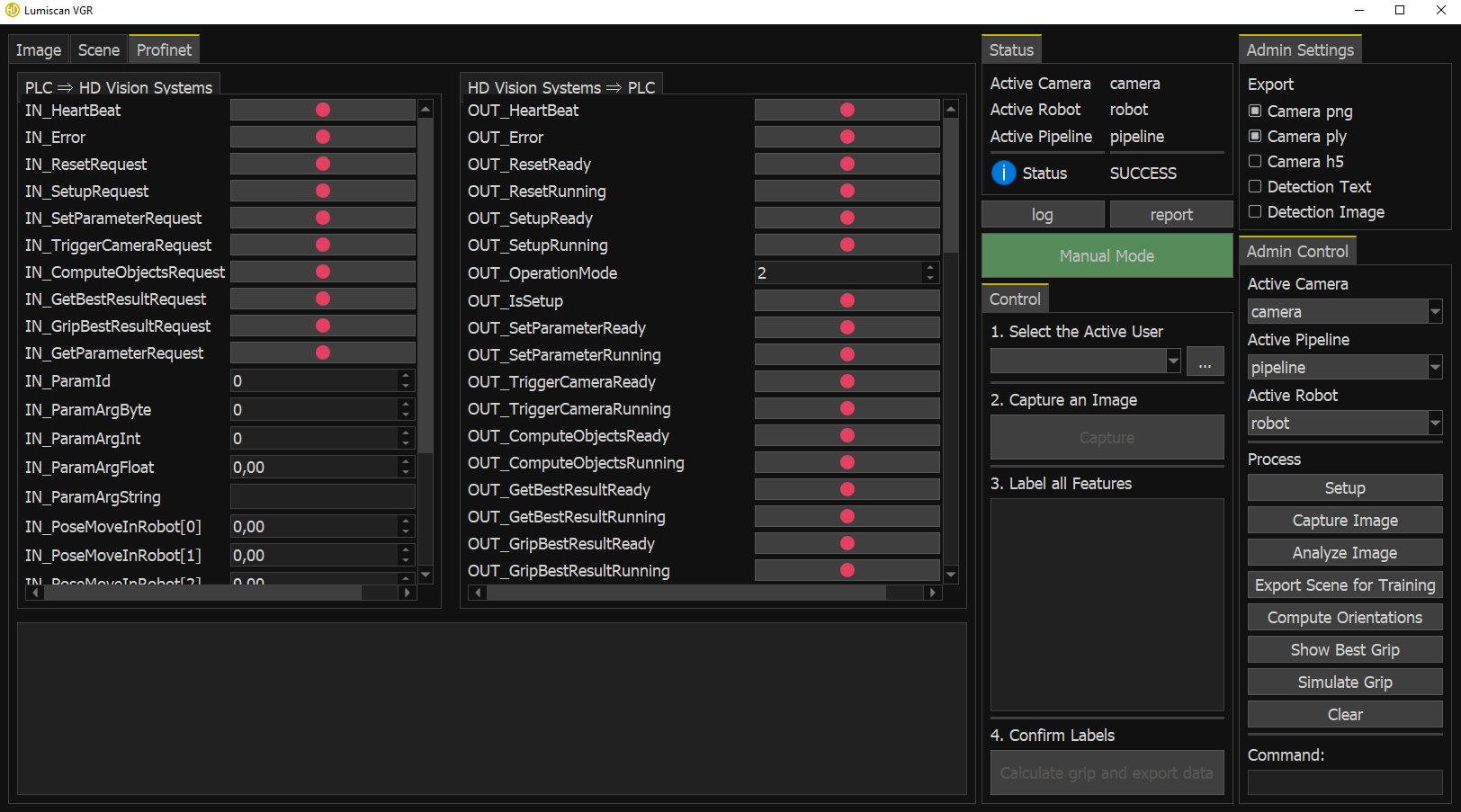
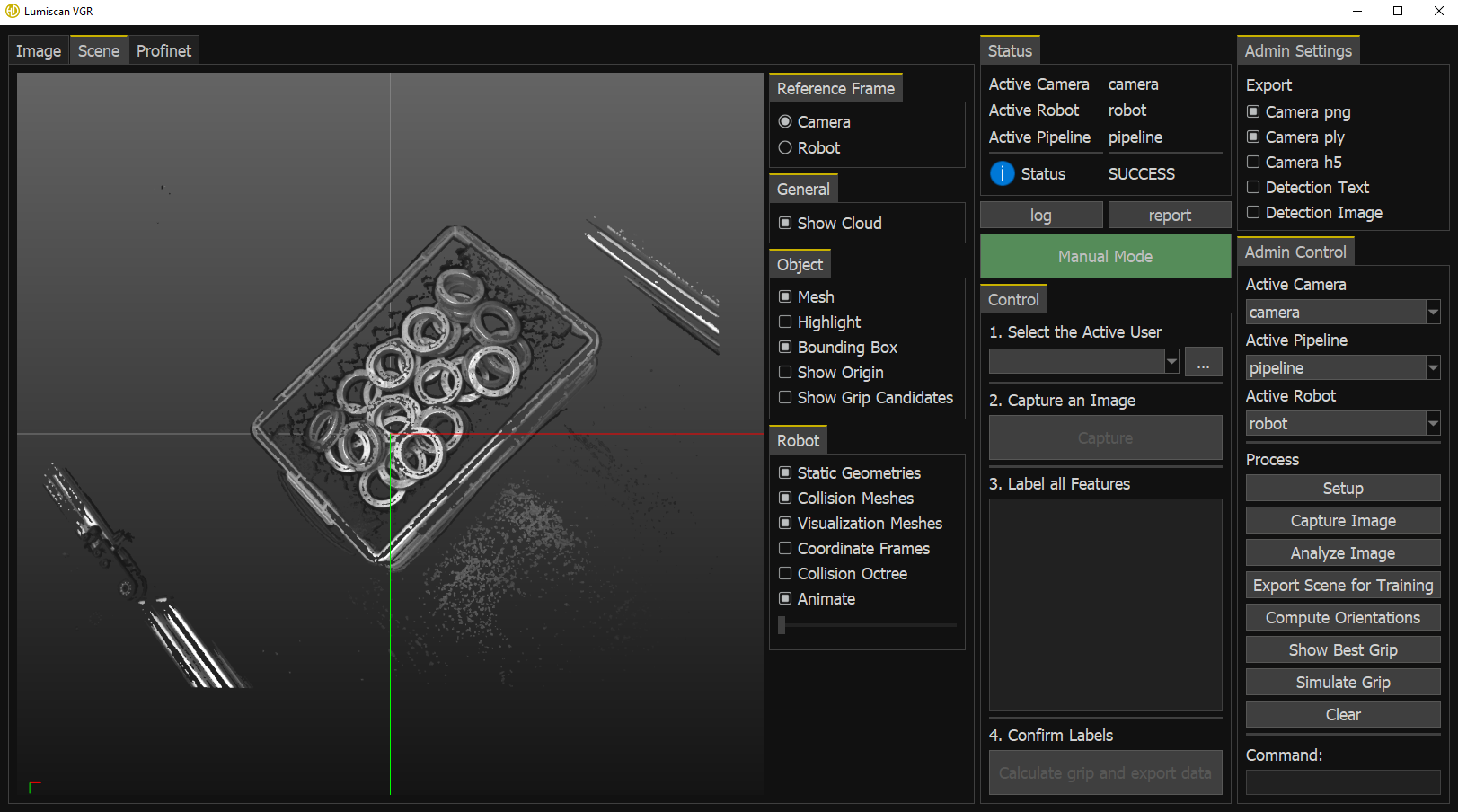
When admin mode is active, additional controls and views become available. These include the admin controls and Scene tab functions described in Table 4 (A1 to A14 and Sc1 to Sc6).
Debug Mode
Debug mode provides additional diagnostic information and visualizations that are useful during initial configuration and troubleshooting.
Press Ctrl + Shift + D to activate or deactivate debug mode.
When debug mode is active:
-
The console log level is changed to debug. The console then displays the same detailed output that is written to the log file.
-
A yellow auto-exposure polygon is displayed in the Image tab. This can be useful when configuring and checking the initial exposure parameters.
-
The export options in the Admin Settings group (A1) can generate additional diagnostic output.
Debug mode is not required during normal operation.