Starting LumiScan VGR
LumiScan VGR can be started either through the Start Menu or from the command line.
Starting from the Start Menu
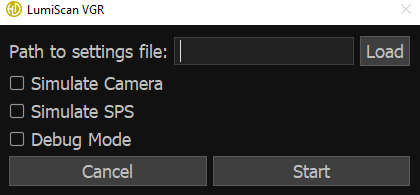
When the software starts, the Start Menu window opens (Fig. 3).
To start LumiScan VGR:
-
Enter the path to the configuration file.
-
Alternatively, click Load and select the configuration file.
-
If required, enable additional startup options.
-
Click Start.
By default, only the path to the configuration file is required. Additional options are available for camera simulation, PLC simulation, and debug mode.
Starting from the Command Line
LumiScan VGR can also be started from the command line.
At minimum, the settings file must be specified using the -s or --settings option.
The available command-line options are listed in Table 2.
| Command-line option | Effect |
|---|---|
|
Required. Specifies the path to the settings file. |
|
Creates a settings file. |
|
Displays information about the current software version. |
|
Optional. Simulates a camera so that no physical camera needs to be connected. Images and point clouds are loaded from disk. |
|
Optional. Simulates the PLC so that no physical PLC needs to be connected. PLC communication can be simulated through the PROFINET tab. |
|
Optional. Starts LumiScan VGR in debug mode. |
|
Displays command-line help. |
|
Displays additional help, including Qt-specific options. |