JSON Settings
The JSON settings provide the central configuration interface for LumiScan VGR. They contain information about cameras, recordings, neural networks, robots, objects, pipelines, and other application settings (Fig. 2).
The required parameters depend on the application and project configuration.
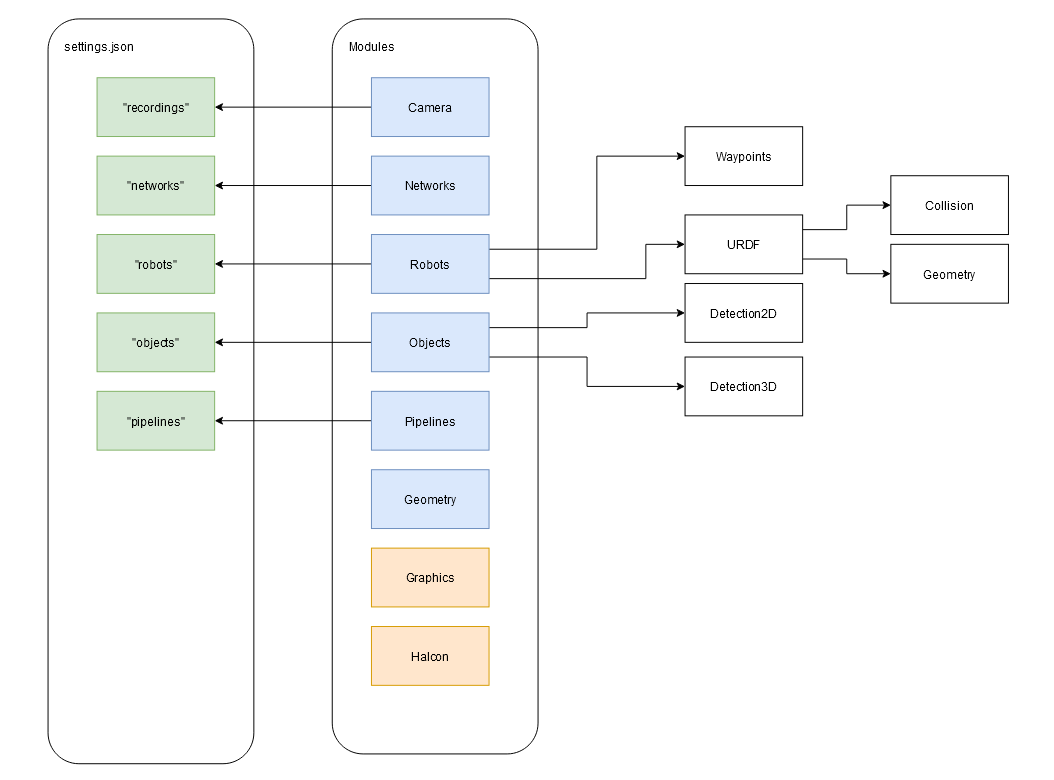
A project folder is created for each application. It contains all files and folders required for the project.
The main sections of the JSON settings are described in Table 1. Click a parameter name to open the detailed configuration reference for that section.
| Parameter | Description |
|---|---|
Contains metadata about the settings file, including the settings format, target machine, application name, and software version. |
|
Contains the physical cameras used by the application. Usually, only one camera is required, but multiple cameras can be configured. |
|
Defines how image and point cloud data are acquired from a LumiScan camera. Settings include filters, depth range, and exposure parameters. |
|
Contains the neural networks used by the application and defines how they are loaded into LumiScan VGR. |
|
Contains information about the robot geometry and its position relative to the cameras. Each configuration requires a valid hand-eye calibration transformation and references a robot description file in Additional 3D geometry can be provided for collision detection. Robots and grippers can also be visualized using CAD models in Objects such as containers can also be represented as robots if their geometry is required for collision detection. |
|
Defines the objects or results that can be detected by the application. Objects to be picked are listed individually. LumiScan VGR can use both 2D and 3D data to detect and localize objects in space. Depending on the application, detection can be based on:
Abstract objects can also be defined, for example composite object characteristics or classification results such as |
|
Defines how image and point cloud data are processed to determine object poses. Multiple pipelines can be configured and selected by the PLC. Together with the camera and robot configuration, the active pipeline defines how a gripping operation is performed. |
|
Optional. Contains user access settings, including password protection for functions requiring elevated permissions, such as |
|
Optional. Contains system settings used for recording and debugging, including which diagnostic data should be recorded. |